Red Hat Linux over view and installion
With Red Hat Enterprise Linux, you can do more, today.
Red Hat Enterprise Linux is an enterprise platform well-suited for a broad range of applications across the IT infrastructure. The latest release, Red Hat Enterprise Linux 6, represents a new standard for Red Hat by offering greater flexibility, efficiency, and control. It works across a broad range of hardware architectures, hypervisors, and clouds. Corporations and agencies that standardize on Red Hat Enterprise Linux are free to focus on building their businesses, knowing they have a platform that delivers more of what they need.More reliable. Worry less when you choose Red Hat over Microsoft Windows.
Senior IT managers rank the quality of Red Hat's technology in the top tier of the software vendors list, as the CIO Insight Magazine Vendor Value survey has reported for the past seven years running. Red Hat Enterprise Linux delivers superior uptime to Microsoft, and your ability to install patches faster than for Microsoft Windows Server 2003 or Windows Server 2008 reduces downtime, freeing your time for more strategic IT tasks. Our global team and innovative engineering approach results in a stable operating system platform in which each release is supported for up to 10 years. You can look to Red Hat to offer and track some of the latest innovations in the industry.More Reliable than Microsoft

Companies that build their business on technology rely on Red Hat Enterprise Linux. NYSE Euronext, DreamWorks Animation, Salesforce.com, and other diverse companies around the world trust Red Hat Enterprise Linux to minimize downtime, provide sound security, run their largest workloads, and drive their businesses with assurance.
More open. Run the applications your business needs on the platforms you choose.
Today's IT infrastructures are multi-vendor and multi-platform. When you select software for your datacenter, you must consider how well it will operate in that heterogeneous environment. Created with a truly open process, Red Hat Enterprise Linux is an open platform that gives you flexibility, choice, and access to a broad range of innovations to help you control your costs and your future.More Open than Oracle

Red Hat collaborates closely with leading independent software vendors (ISVs) and independent hardware vendors (IHVs) to produce an open enterprise operating system that runs well for all users. Red Hat Enterprise Linux is designed to deliver the latest hardware innovations from many vendors, and is optimized to provide a high-performance and stable platform for a broad portfolio of enterprise and leading-edge applications, including SAP, IBM Lotus Domino, Oracle, SAS, and IBM WebSphere, database, and middleware software.
And all this is supported by Red Hat's global support and engineering teams that work alongside our partners every day.
More comprehensive. Standardize on the platform that covers it all.
Virtualization is a native feature of Red Hat Enterprise Linux 6, allowing your applications to have a consistent environment across physical, virtual, and cloud environments. All the work that you do to set up your applications – configuration, creating security policies, defining policy-driven resource allocation, ensuring regulatory compliance, and optimizing performance through system tuning and application diagnostics – is transportable across all of your deployments. And because Red Hat Enterprise Linux itself is independent of and portable across networks, hardware, and hypervisors – including Hyper-V and VMware - your operations are consistent and efficient wherever you choose to run them.More Comprehensive than VMware

Installing of Red Hat Video
Red Hat 6 Installation Guide – RHEL 6 Install Screenshots
 This is Red Hat 6 RHEL (Red Hat Enterprise Linux) installation guide, step-by-step walkthrough with screenshots. Current version of Red Hat 6 is Beta, but also this RHEL 6 Beta version looks very stable and good OS, so that’s why I decided to write this RHEL 6 Installation guide.
The Red Hat Enterprise Linux 6 Beta is available on the following architectures:
- i386
- AMD64/Intel64
- System z
- IBM Power (64-bit)
Some of the many improvements and new features that are included in Red Hat Enterprise Linux 6
- Power management – tickless kernel and improvements through the application stack to reduce wakeups, power consumption measurement by Powertop, Power Management (ASPM, ALPM), and adaptive system tuning by Tuned, all enhance more efficient system power usage.
- Next generation networking – comprehensive IPv6 support (NFS 4, CIFS, mobile support [RFC 3775], ISATAP support), FCoE, iSCSI, and a new and improved mac 802.11 wireless stack.
- Scalable filesystems – ext4 file system provides support for larger file sizes and significantly reduces repair times over ext3. XFS® is a high-performance file system that supports extremely large files and is optimized for large data transfers.
- Virtualization – KVM includes performance improvements and new features, sVirt protects the guest and host from unauthorized access, SR-IOV and NPIV deliver high-performance virtual use of physical devices, and libvirt leverages kernel resource management functionality.
- Enterprise security enhancement – SELinux includes improved ease of use, application sandboxing, and significantly increased coverage of system services, while SSSD provides unified access to identity and authentication services as well as caching for off-line use.
- Development and runtime support – SystemTap improvements, ABRT is a new framework for simple collection and reporting of bug information, and improvements are made to GCC (version 4.4.3), glibc (version 2.11.1), and GDB (version 7.0.1).
Burn Downloaded Image to DVD and Boot Computer Using Red Hat 6 Installation DVD
Check RHEL image MD5 sum and burn image to DVD with your favourite CD/DVD burner. And boot computer using Red Hat Installation DVD.Red Hat 6 RHEL Installation
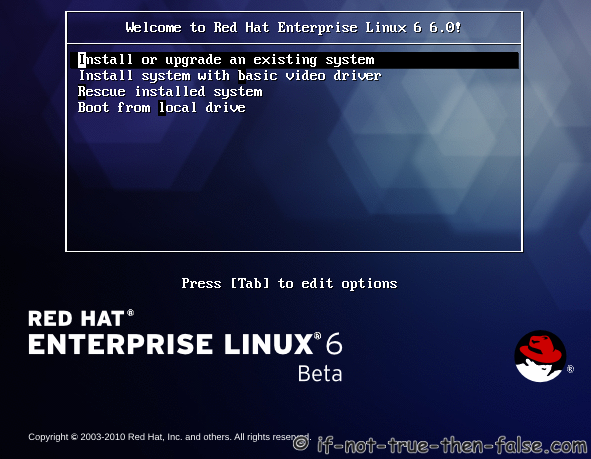
1. Select Install or upgrade an existing system option on Grub Menu
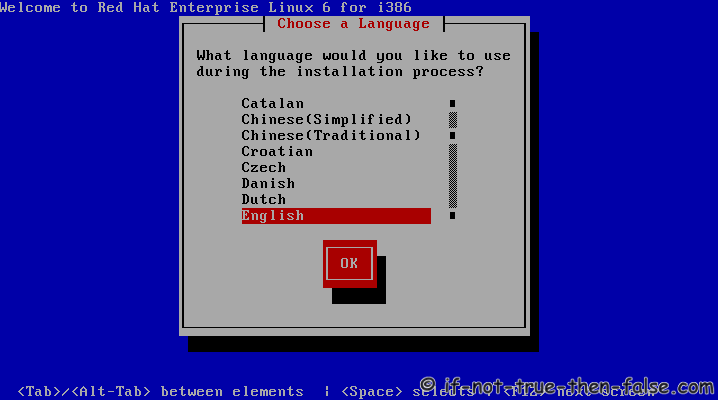
2. Choose a language
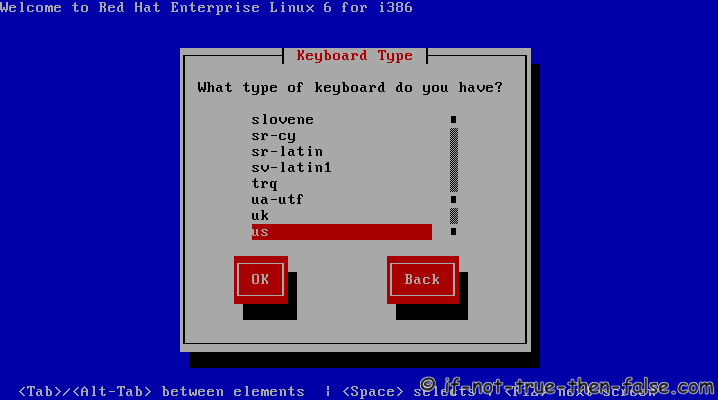
3. Choose a keyboard type
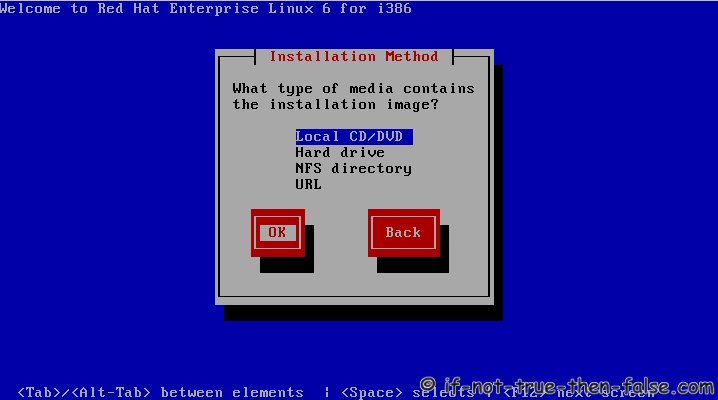
4. Choose a installation media
5. Skip DVD media test (or select media test, if you want to test installation media before installation)
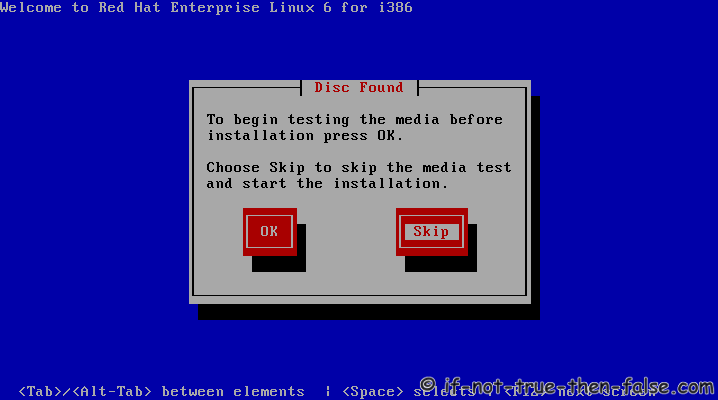
6. Red Hat 6 graphical installer starts, select next
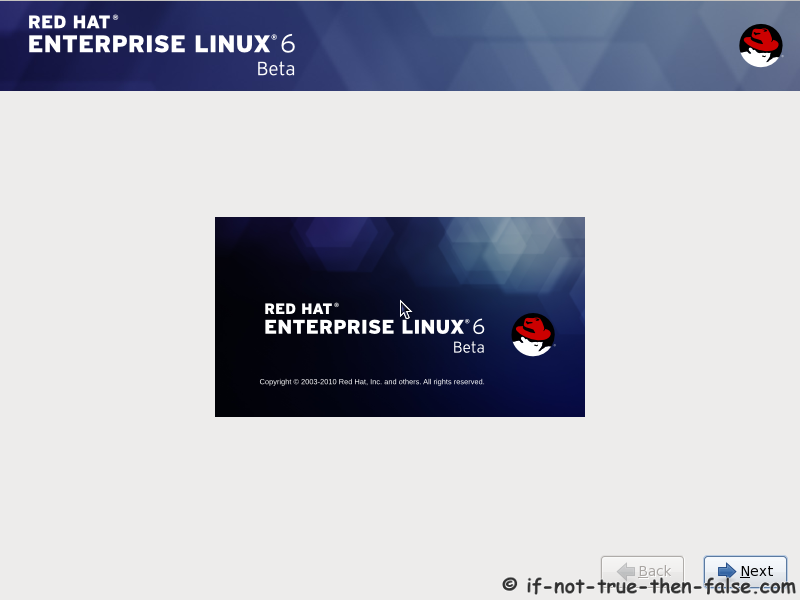
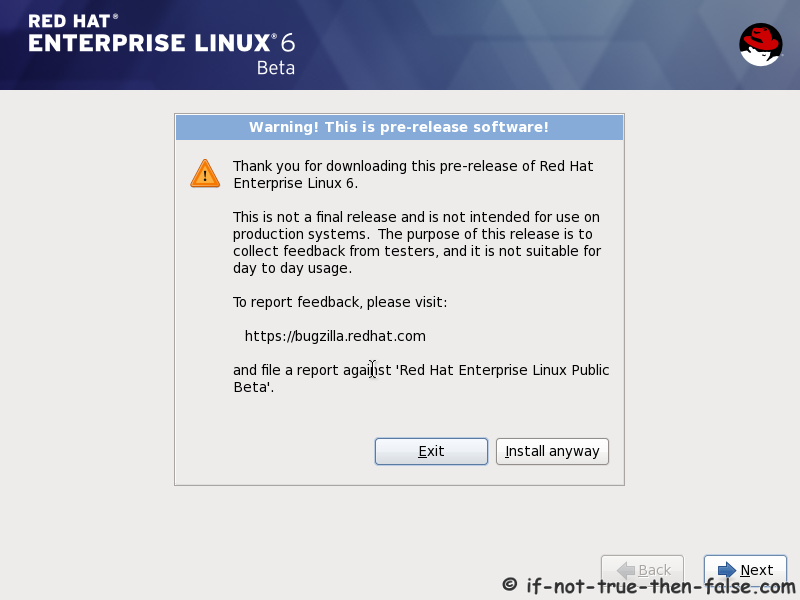
7. Accepct Pre-Release Installation
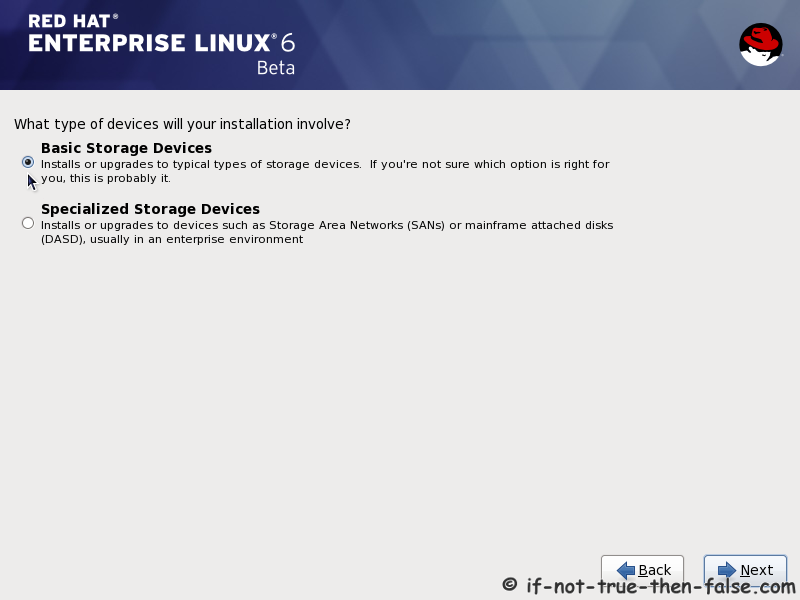
8. Select storage devices
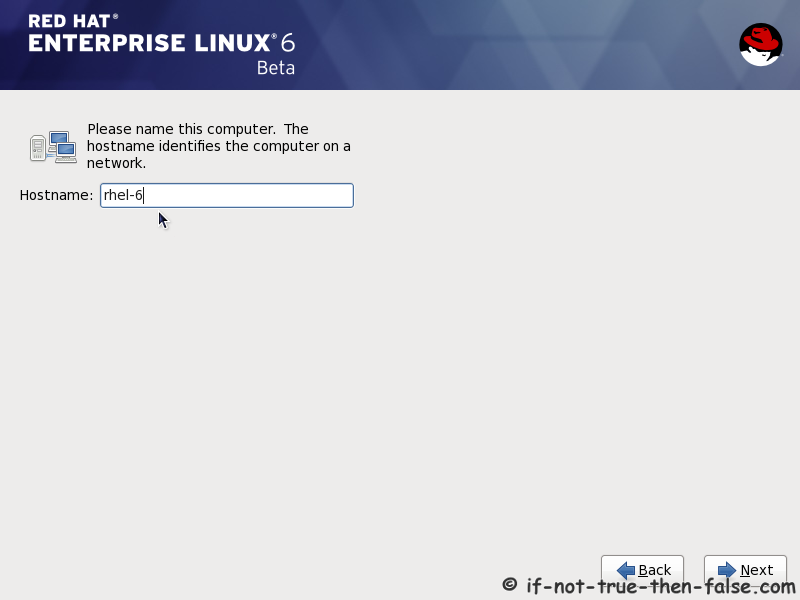
9. Insert computer name
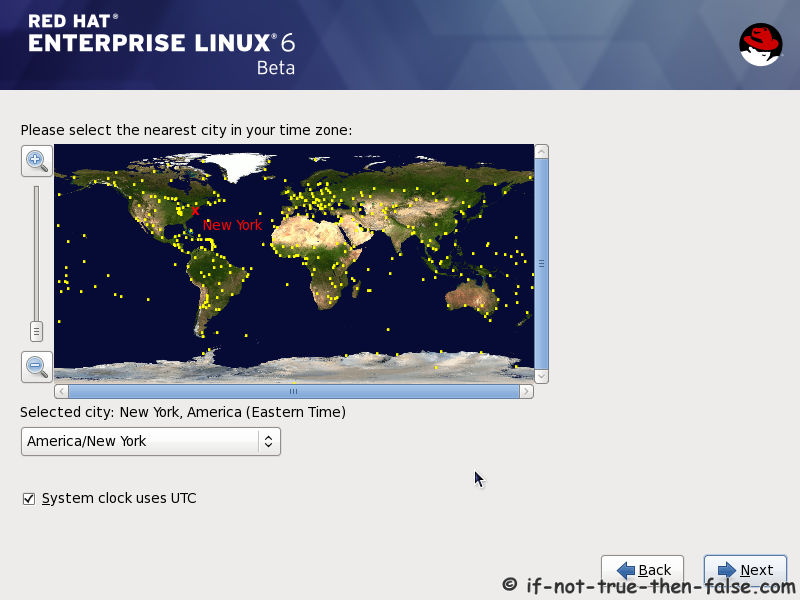
10. Select time zone
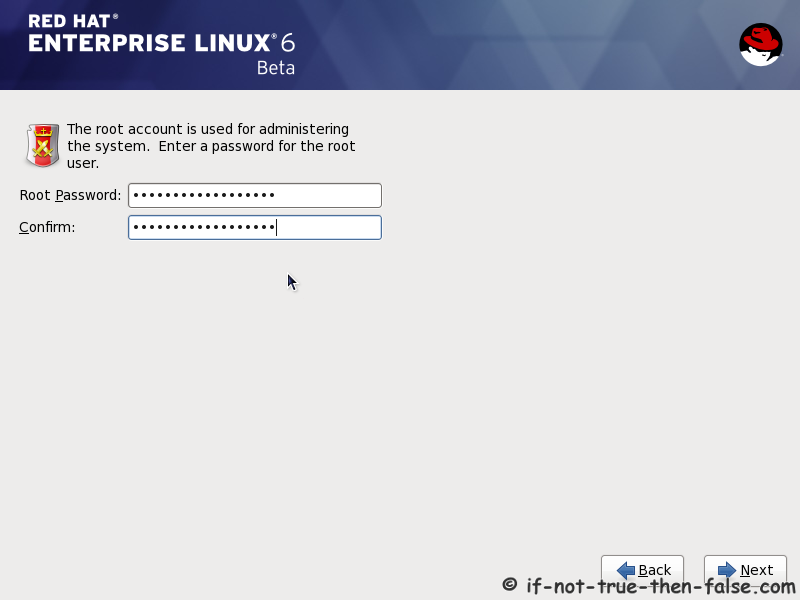
11. Enter a password for root user
12. Select type of installation
Read every options info carefully. And select encrypting if needed and option to review and modify partition layout.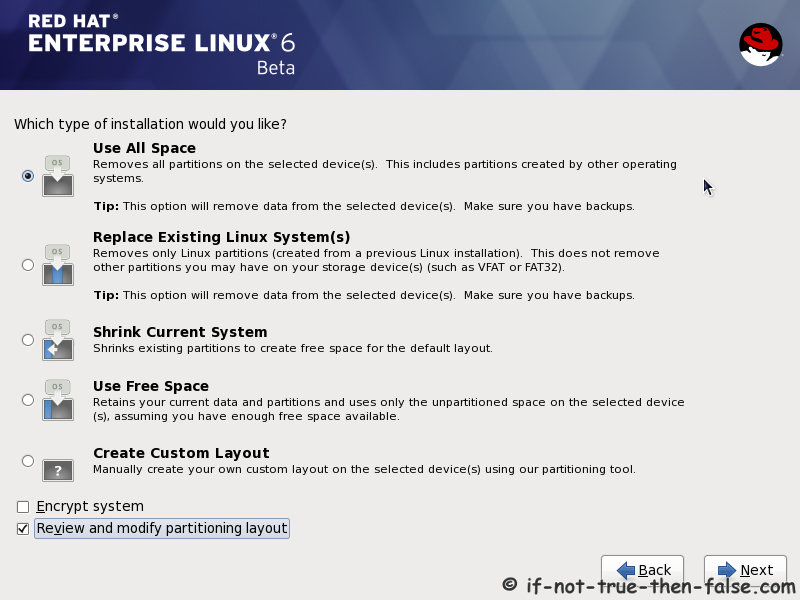
13. Review partition layout
Modify if needed. Default setup with ext4 and LVM looks good for desktop machine.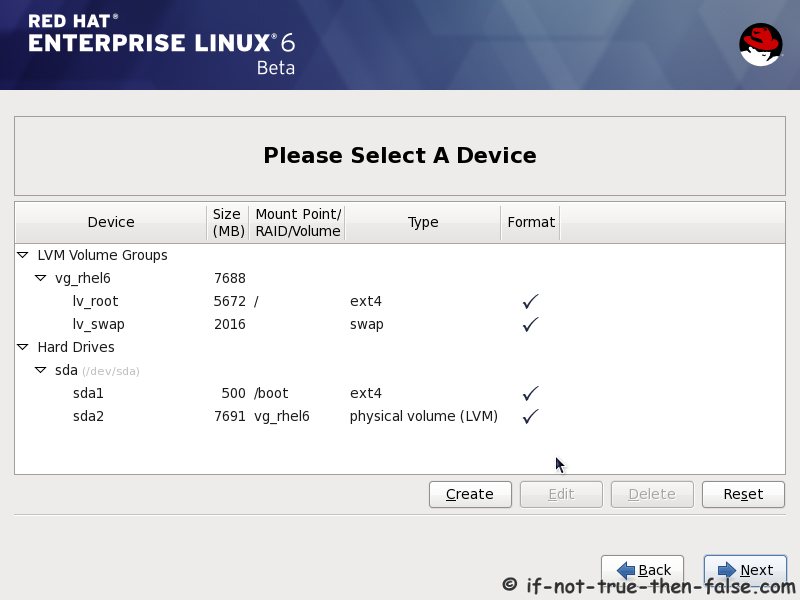
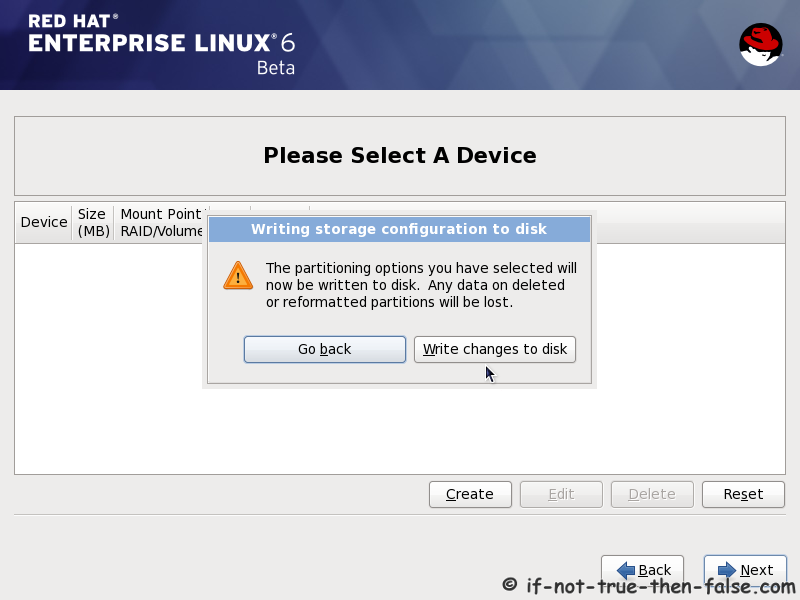
14. Accept write changes to disc
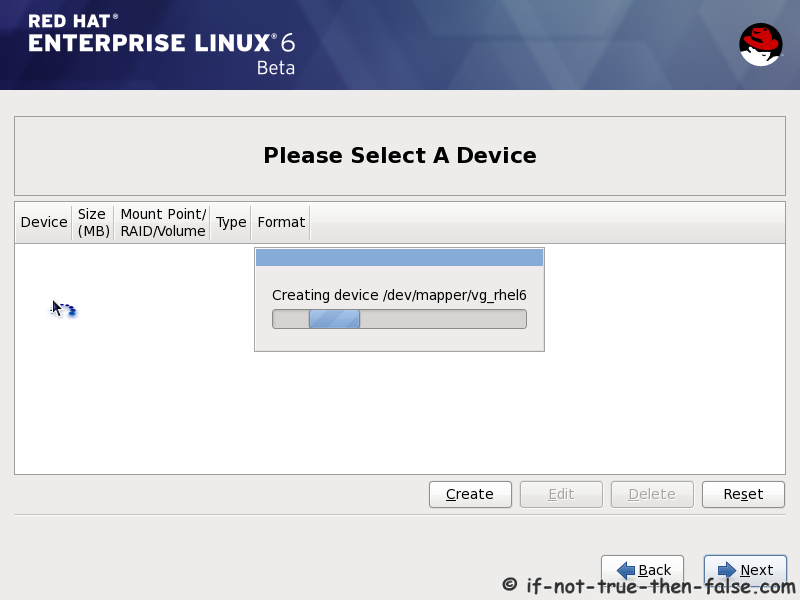
15. Writing changes (creating partitions) to disc
16. Configure boot loader options
Select device to install bootloader and check/create boot loader operating system list.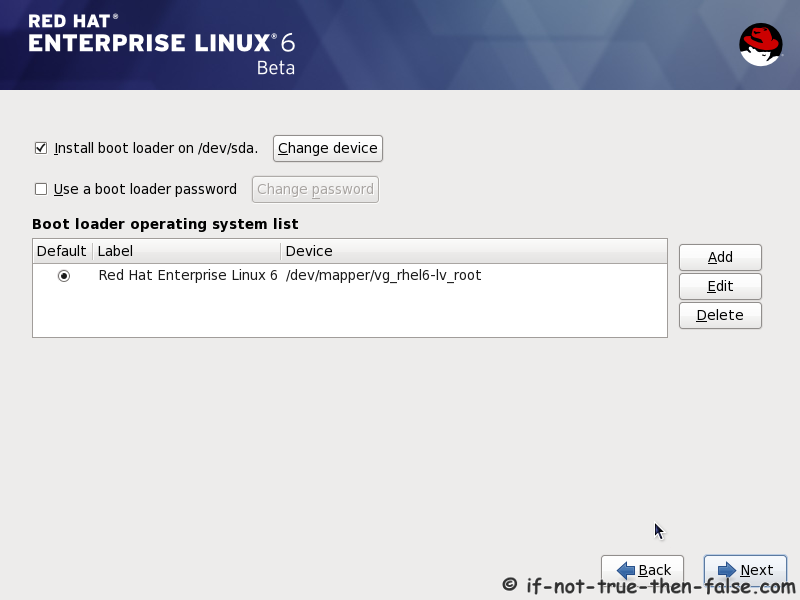
17. Select softwares to install and enable repositories
This case we select Software Development Workstation and enable Red Hat Enterprise Linux 6.0 Beta Repository and select Customize now.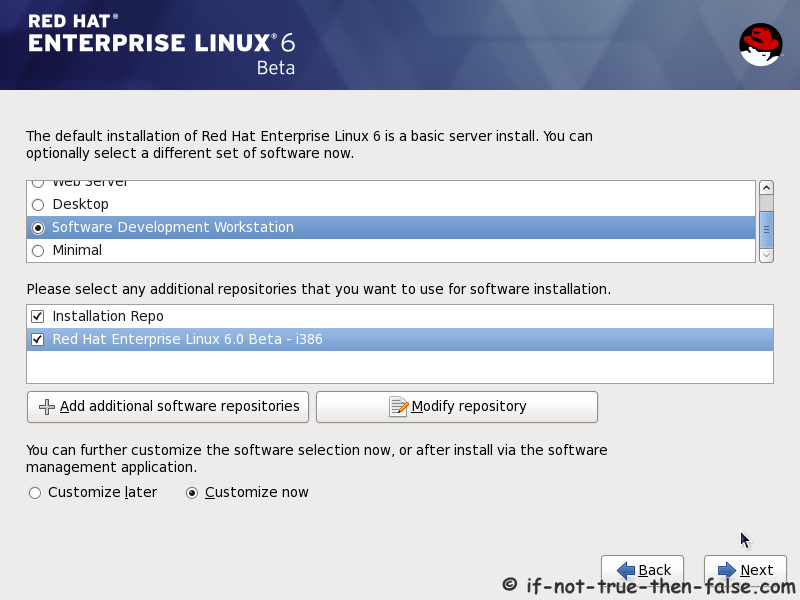
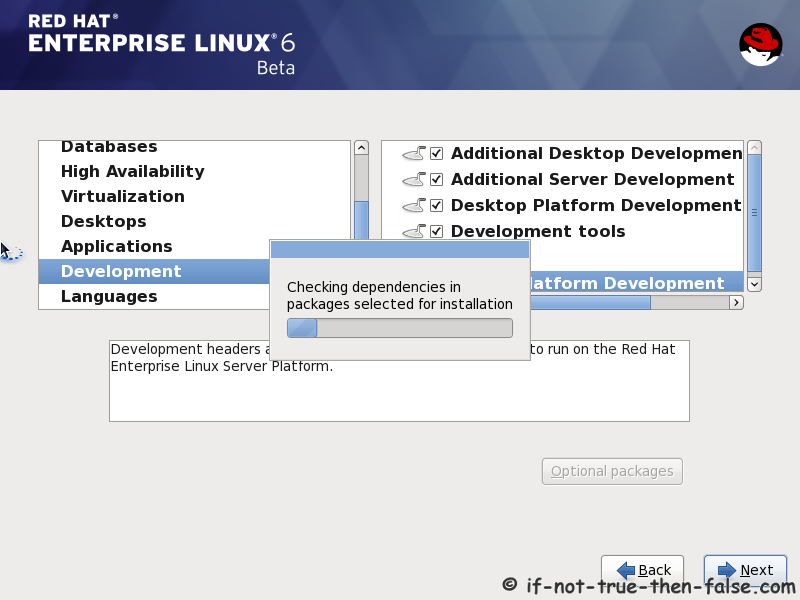
18. Customize package selection
Select PHP and Web Server to installation.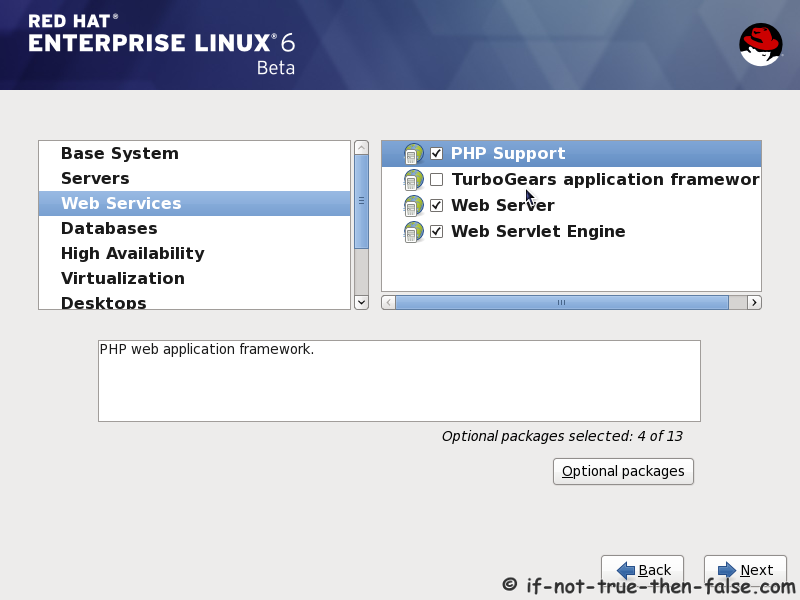
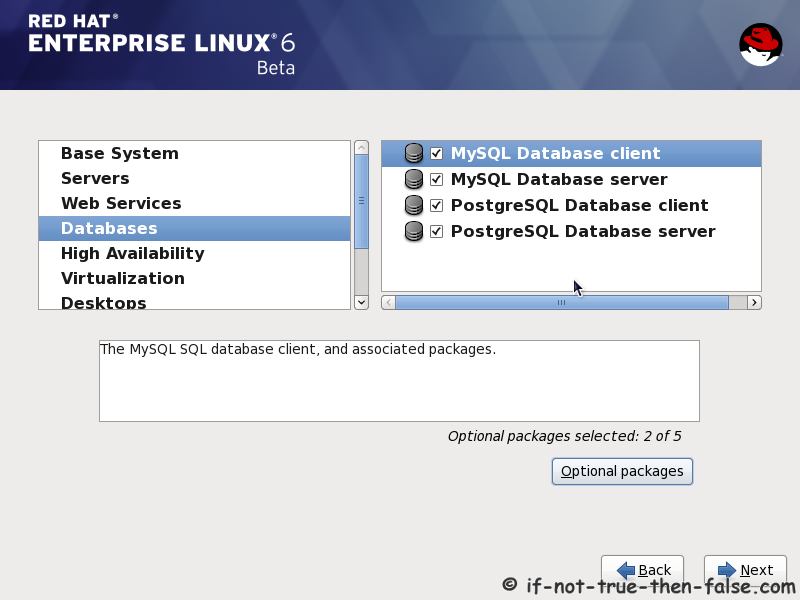
Select MySQL and PostgreSQL Databases.
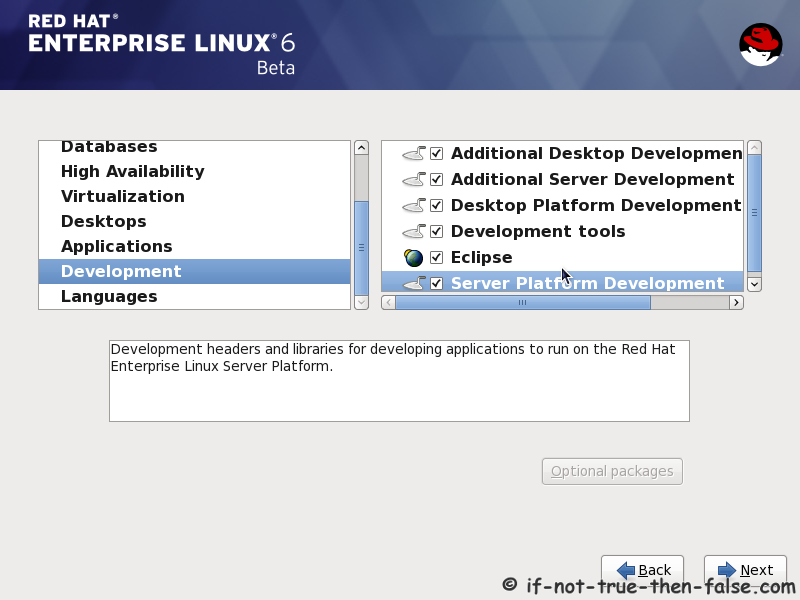
Select set of Development tools like Eclipse IDE.
19. Checking dependencies for installation
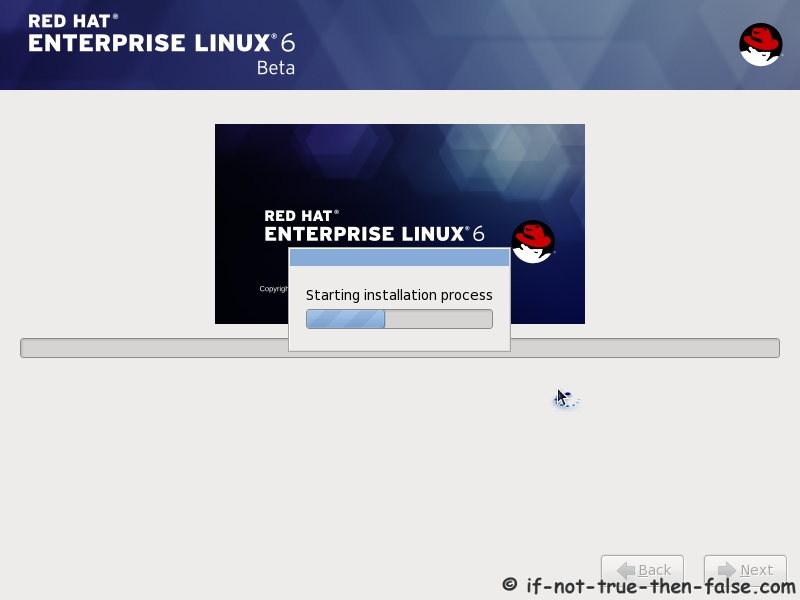
20. Starting installation process
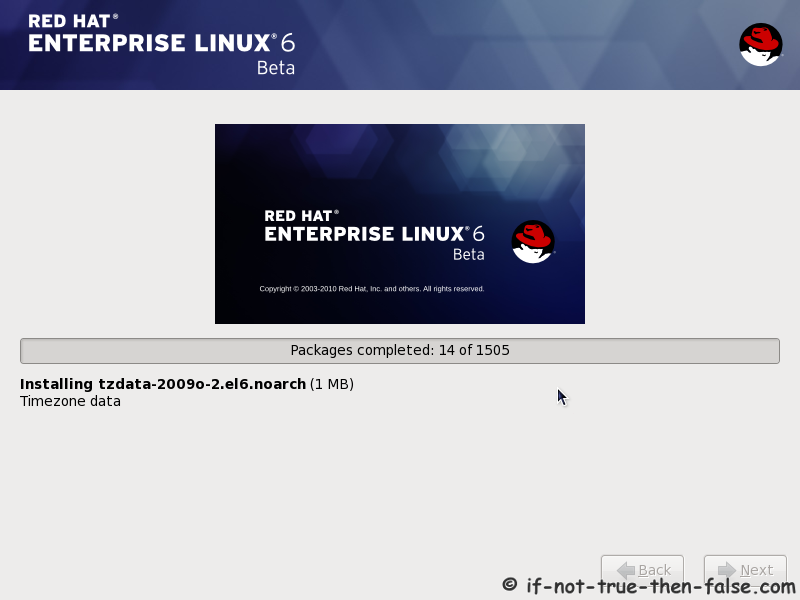
21. Installing packages
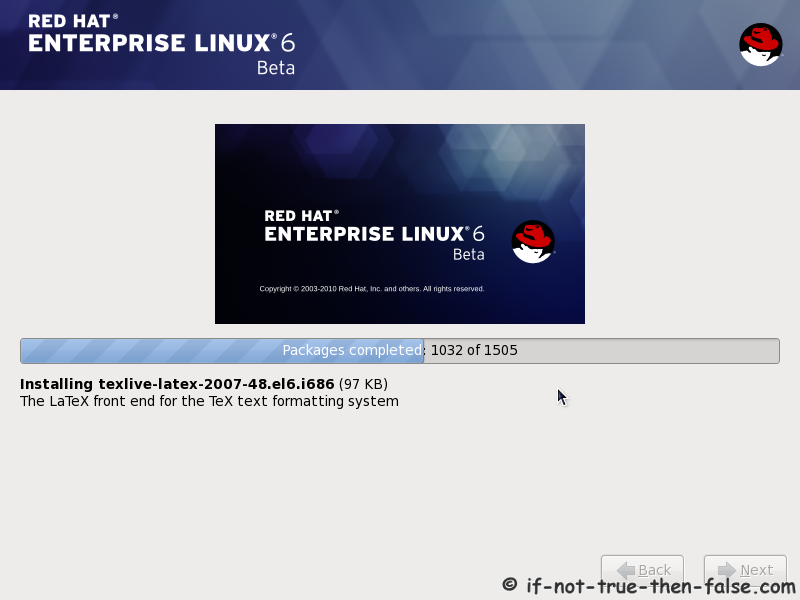
22. Installation is complete
Click reboot computer and remove installation media.
Red Hat 6 RHEL Finishing Installation
23. Selecting RHEL 6 from grub
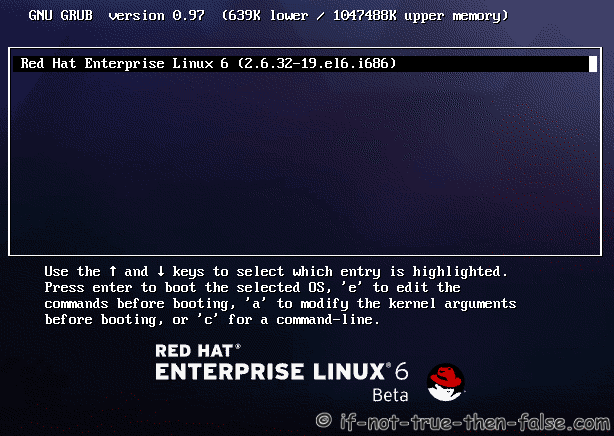
24. Booting Red Hat 6

25. Red Hat 6 Welcome screen
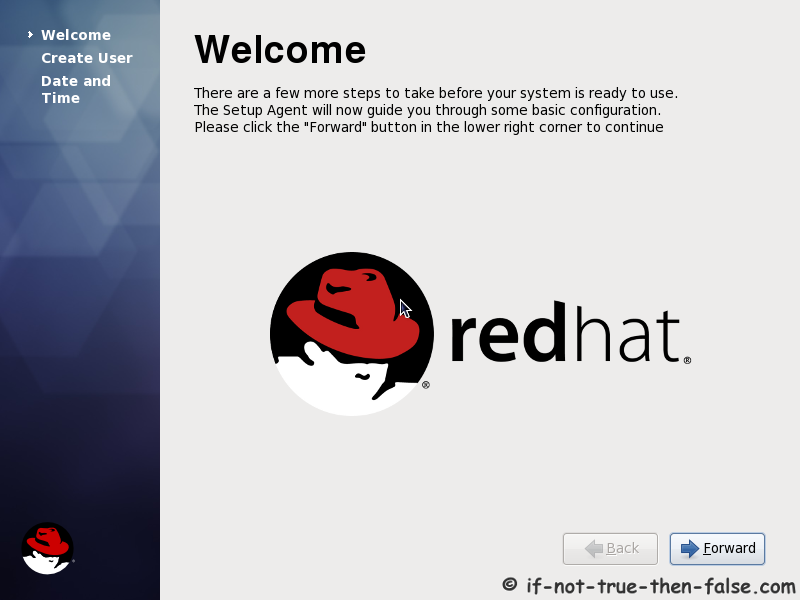
26. Create normal user
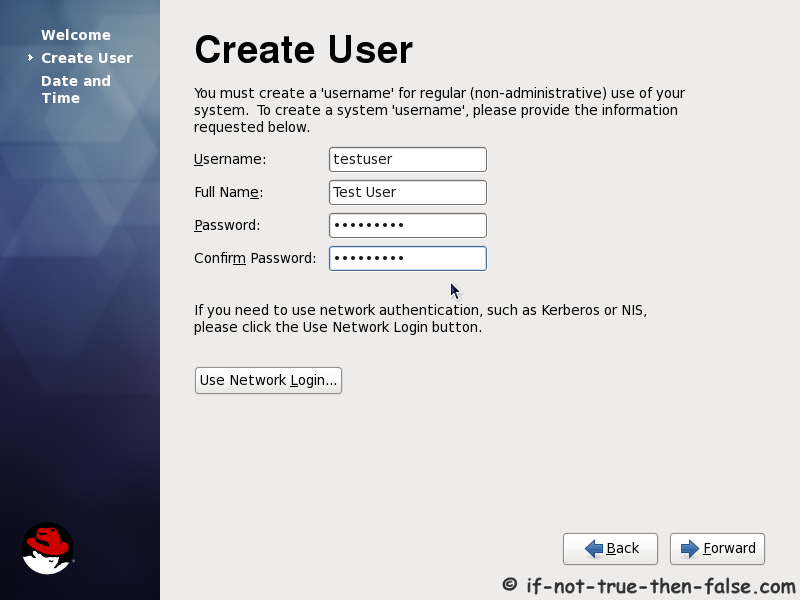
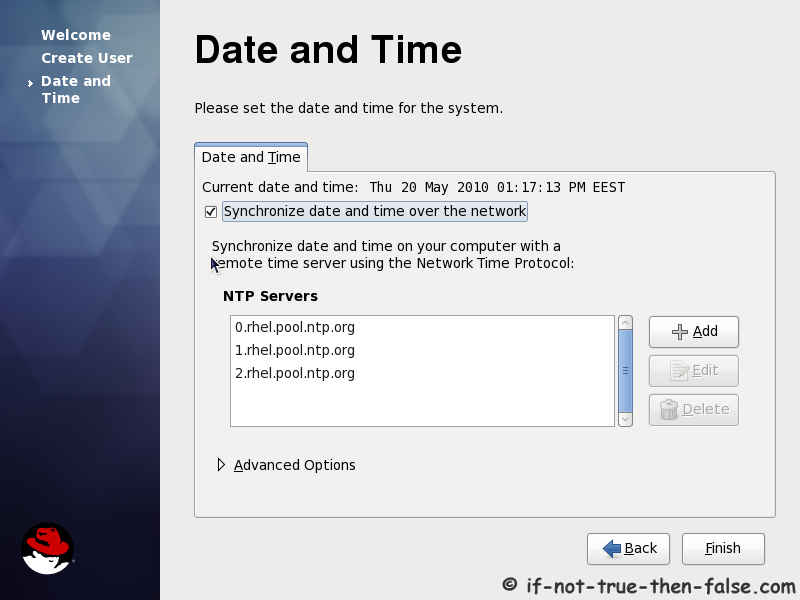
27. Setup date and time and keep up-to-date with NTP
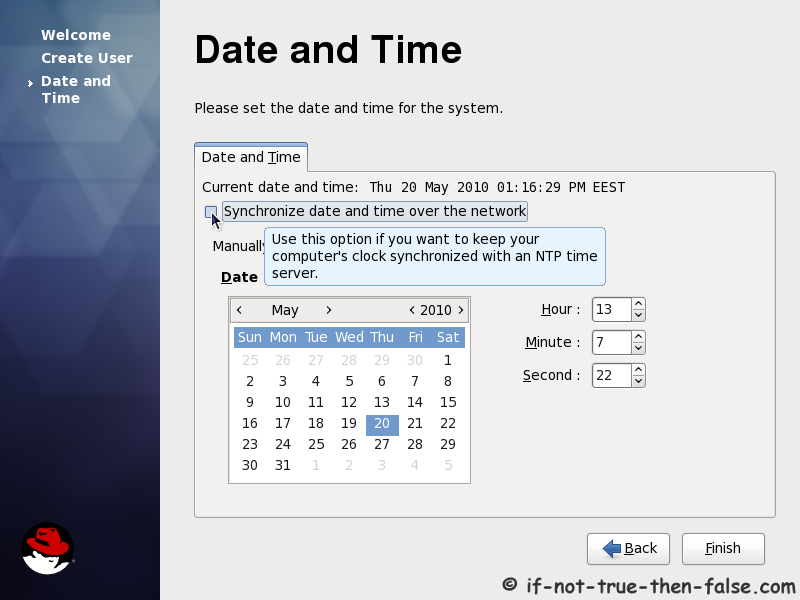
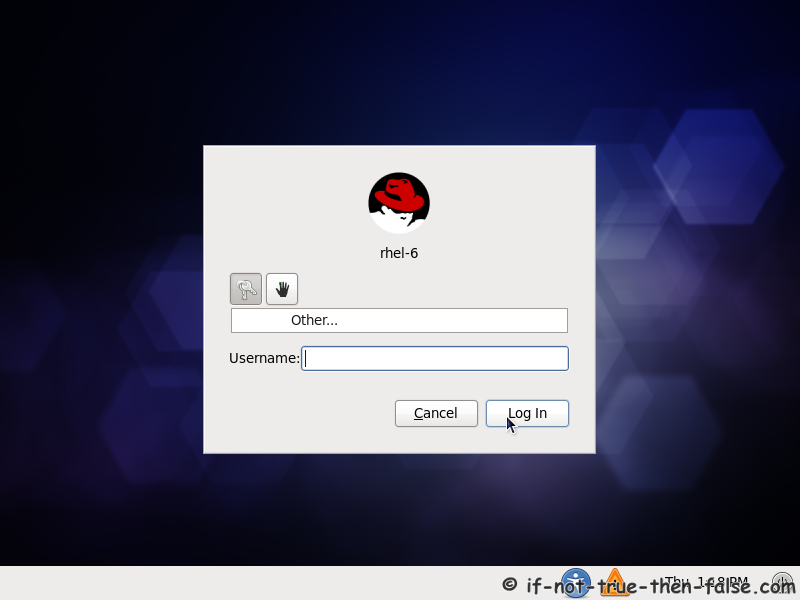
28. Login Red Hat 6 Gnome Desktop
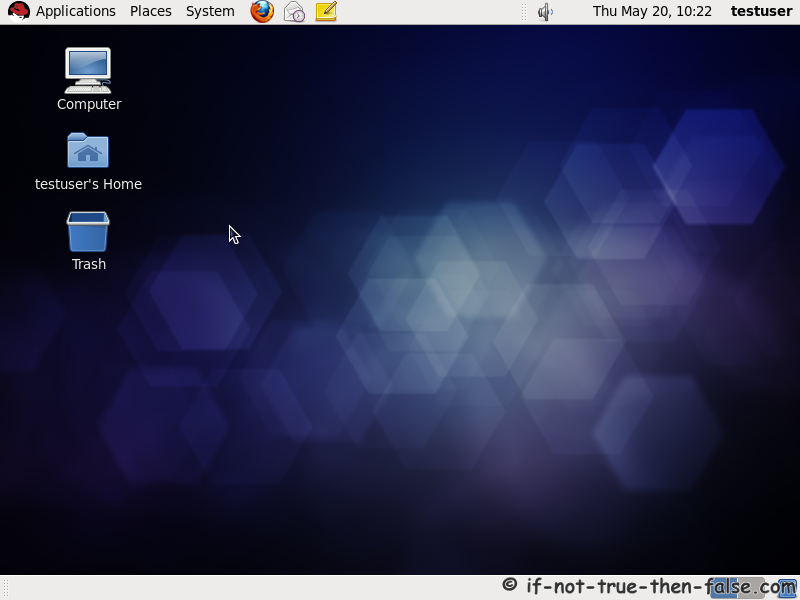
29. Red Hat (RHEL) 6 Gnome Desktop, empty and default look


Comments