Yolinux.com Tutorial Linux Internet Web Server and Domain Configuration Tutorial
Linux Internet Web Server and Domain Configuration Tutorial
Create a web server with Linux, Apache, FTP and bind DNS: This tutorial covers the Linux server configuration required to host a website. The Apache web server, FTP server and DNS configuration are covered. The Apache web server is required to serve the web pages, the FTP server is required for users to upload content and the DNS server is required to resolve the domain names so that a URL entered into a web browser will point to your web server and properly serve the correct pages. The configurations presented will include virtual hosting which will allow a single Linux server to support multiple web site domains.
This tutorial assumes that a computer has Linux installed and running. See RedHat Installation for the basics. A connection to the internet is also assumed. A connection of 128 Mbits/sec or greater will yield the best results. ISDN, DSL, cable modem or better are all suitable. A 56k modem will work but the results will be mediocre at best. The tasks must also be performed with the root user login and password. Software Prerequisites: The Apache web server (httpd), FTP (requires xinetd or inetd) and Bind (named) software packages with their dependencies are all required. One can use the rpm command to verify installation:
Fedora Core 1+, Red Hat Enterprise 4/5, CentOS 4/5:
Note: The apache2-MPM is a generic term for Apache installation options for "Multi-Processing Modules (MPM)s "prefork" or "worker". If you try and only install apache2 you will get the following error:
One should also have a working knowledge of the Linux init process so that these services are initiated upon system boot. See the YoLinux init process tutorial for more info.
Apache HTTP Web server configuration:
This tutorial is for the Apache HTTP web server (Version 1.3 and 2.0). See the YoLinux list of Linux HTTP servers for a list of other web servers for the Hyper Text Transport Protocol.
The Apache configuration file is: /etc/httpd/conf/httpd.conf
Web pages are served from the directory as configured by the DocumentRoot directive. The default directory location is:
Red Hat 7.x-9, Fedora Core, Red Hat Enterprise 4/5, CentOS 4/5: /var/www/html/
The default home page for the default configuration is index.html. Note the pages should not be owned by user apache as this is the process owner of the httpd web server daemon. If the web server process is comprimised, it should not be allowed to alter the files. The files should of course be readable by user apache. Apache may be configured to run as a host for one web site in this fashion or it may be configured to serve for multiple domains. Serving for multiple domains may be achieved in two ways:
Virtual hosts: One IP address but multiple domains - "Name based" virtual hosting.
Multiple IP based virtual hosts: One IP address for each domain - "IP based" virtual hosting.
The default configuration will allow one to have multiple user accounts under one domain by using a reference to the user account: http://www.domain.com/~user1/. If no domain is registered or configured, the IP address may also be used: http://XXX.XXX.XXX.XXX/~user1/. [Potential Pitfall] The default umask for directory creation is correct by default but if not use: chmod 755 /home/user1/public_html [Potential Pitfall] When creating new "Directory" configuration directives, I found that placing them by the existing "Directory" directives to be a bad idea. It would not use the .htaccess file. This was because the statement defining the use of the .htaccess file was after the "Directory" statement. Previously in RH 6.x the files were separated and the order was defined a little different. I now place new "Directory" statements near the end of the file just before the "VirtualHost" statements.
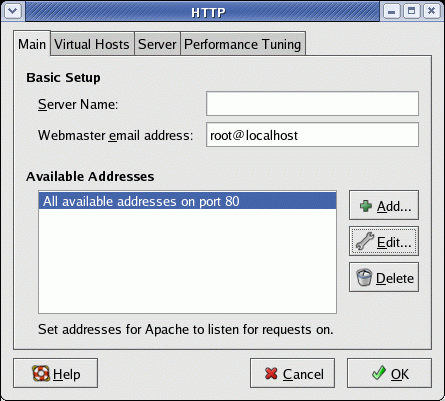
For users of Red Hat 7.1, the GUI configuration tool apacheconf was introduced for the crowd who like to use pretty point and click tools.
Files used by Apache:
Red Hat/Fedora/CentOS: /etc/httpd/conf.d/component.conf
SuSE: /etc/apache2/conf.d/component.conf
Ubuntu (dapper 6.06/hardy 8.04) / Debian:
Virtual domains: /etc/apache2/sites-enabled/domain
(Create soft link from /etc/apache2/sites-enabled/domain to /etc/apache2/sites-available/domain to turn on. Use command a2ensite)
Modules to load: /etc/apache2/mods-available/
(Soft link to /etc/apache2/mods-enabled/ to turn on)
Ports to listen to: /etc/apache2/ports.conf
/var/log/httpd/access_log and error_log - Red Hat/Fedora Core Apache log files
(Suse: /var/log/apache2/)
Start/Stop/Restart scripts: The script is to be run with the qualifiers start, stop, restart or status.
i.e. /etc/rc.d/init.d/httpd restart. A restart allows the web server to start again and read the configuration files to pick up any changes. To have this script invoked upon system boot issue the command chkconfig --add httpd. See Linux Init Process Tutorial for a more complete discussion.
Also Apache control tool: /usr/sbin/apachectl start Apache Control Command: apachectl:
Red Hat / Fedora Core / CentOS: apachectldirective Ubuntu dapper 6.06 / hardy 8.04 / Debian: apache2ctldirective
Directive
Description
start
Start the Apache httpd daemon. Gives an error if it is already running.
stop
Stops the Apache httpd daemon.
graceful
Gracefully restarts the Apache httpd daemon. If the daemon is not running, it is started. This differs from a normal restart in that currently open connections are not aborted.
restart
Restarts the Apache httpd daemon. If the daemon is not running, it is started. This command automatically checks the configuration files as in configtest before initiating the restart to make sure the daemon doesn't die.
status
Displays a brief status report.
fullstatus
Displays a full status report from mod_status. Requires mod_status enabled on your server and a text-based browser such as lynx available on your system. The URL used to access the status report can be set by editing the STATUSURL variable in the script.
configtest
-t
Run a configuration file syntax test.
Apache Configuration Files:
/etc/httpd/conf/httpd.conf: is used to configure Apache. In the past it was broken down into three files. These may now be all concatenated into one file. See Apache online documentation for the full manual.
/etc/httpd/conf.d/application.conf: All configuration files in this directory are included during Apache start-up. Used to store application specific configurations.
/etc/sysconfig/httpd: Holds environment variables used when starting Apache.
Basic settings: Change the default value for ServerName www.<your-domain.com>Giving Apache access to the file system: It is prudent to limit Apache's view of the file system to only those directories necessary. This is done with the directory statement. Start by denying access to everything, then grant access to the necessary directories. Deny access completely to file system root ("/") as the default:
Deny first, then grant permissions:
   Options None
   AllowOverride None
Set default location of system web pages and allow access: (Red Hat/Fedora/CentOS)
DocumentRoot "/var/www/html"


   Options Indexes FollowSymLinks
   AllowOverride None
   Order allow,deny
   Allow from all
Grant access to a user's web directory: public_html
Enabling Red Hat / Fedora Linux, Apache public_html user directory access: This will allow users to serve content from their home directories under the subdirectory "/home/userid/public_html/" by accessing the URL http://hostname/~userid/
File: /etc/httpd/conf/httpd.conf
LoadModule userdir_module modules/mod_userdir.so

...
...


    #UserDir disable             - Add comment to this line
    #
    # To enable requests to /~user/ to serve the user's public_html
    # directory, remove the "UserDir disable" line above, and uncomment
    # the following line instead:
    UserDir public_html          # Uncomment this line


...
...


    AllowOverride FileInfo AuthConfig Limit
    Options MultiViews Indexes SymLinksIfOwnerMatch IncludesNoExec

        Order allow,deny
        Allow from all


        Order deny,allow
        Deny from all
Change to a comment (add "#" at beginning of line) from Fedora Core default UserDir disable and assign the directory public_html as a web server accessible directory. OR
Assign a single user the specific ability to share their directory:
user1/public_html>
   AllowOverride None
   order allow,deny
   allow from all
   Options Indexes Includes FollowSymLinks
Allows the specific user, "user1" only, the ability to serve the directory /home/user1/public_html/
Also use SELinux command to set the security context: setsebool httpd_enable_homedirs true File permissions: The Apache web server daemon must be able to read your web pages in order to feed thier contents to the network. Use an appropriate umask and file protection. This works: chmod ugo+r -R public_html
One may also use groups to control permisions. See the YoLinux tutorial on managing groups.
Enabling Ubuntu's Apache public_html user directory access: Ubuntu has broken out the Apache loadable module directives into the directory /etc/apache2/mods-available/. To enable an Apache module, generate soft links to the directory /etc/apache2/sites-enabled/ by using the commands a2enmod/a2dismod to enable/disable Apache modules.
Example:
[root@node2]# a2enmod
A list of available modules is displayed. Enter "userdir" as the module to enable.
Restart Apache with the following command: /etc/init.d/apache2 force-reload
Note: This is the same as manually generating the following two soft links:
Man page: a2enmod/a2dismod[Potential Pitfall]: If the Apache web server can not access the file you will get the error "403 Forbidden" "You don't have permission to access file-name on this server." Note the default permissions on a user directory when first created with "useradd" are:
drwx------ 3 userx userx
You must allow the web server running as user "apache" to access the directory if it is to display pages held there.
Fix with command: chmod ugo+rx /home/userx
drwxr-xr-x 3 userx userx
SELinux security contexts:
Fedora Core 3 and Red Hat Enterprise Linux 4 introduced SELinux (Security Enhanced Linux) security policies and context labels. To view the security context labels applied to your web page files use the command: ls -Z The system enables/disables SELinux policies in the file /etc/selinux/config SELinux can be turned off by setting the directive SELINUX. (Then reboot the system):
SELINUX=disabled
or using the command setenforce 0 to temporarily disable SELinux until the next reboot. When using SELinux security features, the security context labels must be added so that Apache can read your files. The default security context label used is inherited from the directory for newly created files. Thus a copy (cp) must be used and not a move (mv) when placing files in the content directory. Move does not create a new file and thus the file does not recieve the directory security context label. The context labels used for the default Apache directories can be viewed with the command: ls -Z /var/www
The web directories of users (i.e. public_html) should be set with the appropriate context label (httpd_sys_content_t).
Assign a security context for web pages: chcon -R -h -t httpd_sys_content_t /home/user1/public_html
Options:
-R: Recursive. Files and directories in current directory and all subdirectories.
-h: Affect symbolic links.
-t: Specify type of security context.
Use the following security contexts:
Context Type
Description
httpd_sys_content_t
Used for static web content. i.e. HTML web pages.
httpd_sys_script_exec_t
Use for executable CGI scripts or binary executables.
httpd_sys_script_rw_t
CGI is allowed to alter/delete files of this context.
httpd_sys_script_ra_t
CGI is allowed to read or append files of this context.
httpd_sys_script_ro_t
CGI is allowed to read files and directories of this context.
Set the following options: setsebool httpd-option true
(or set to false)
Policy
Description
httpd_enable_cgi
Allow httpd cgi support.
httpd_enable_homedirs
Allow httpd to read home directories.
httpd_ssi_exec
Allow httpd to run SSI executables in the same domain as system CGI scripts.
Then restart Apache:
Red Hat/Fedora/Suse and all System V init script based Linux systems: /etc/init.d/httpd restart
Red Hat/Fedora: service httpd restart
The default SE boolean values are specified in the file: /etc/selinux/targeted/booleans
For more on SELinux see the YoLinux Systems Administration tutorial.
Virtual Hosts:
The Apache web server allows one to configure a single computer to represent multiple websites as if they were on separate hosts. There are two methods available and we describe the configuration of each. Choose one method for your domain:
Name based virtual host: (most common) A single computer with a single IP adress supporting multiple web domains. The web browser using the http protocol, identifies the domain being addressed.
IP based virtual host: The virtual hosts can be configured as a single multi-homed computer with multiple IP addresses on a single network card, with each IP address representing a different web domain. This has the appearance of a web domain supported by a dedicated computer because it has a dedicated IP address.
Configuring a "name based" virtual host:
A virtual host configuration allows one to host multiple web site domains on one server. (This is not required for a dedicated linux server which hosts a single web site.)
NameVirtualHost XXX.XXX.XXX.XXXXXX.XXX.XXX.XXX>
ServerName www.your-domain.com- CNAME (bind DNS alias www) specified in Bind configuration file (/var/named/...)
ServerAlias your-domain.com- Allows requests by domain name without the "www" prefix.
ServerAdmin user1@your-domain.com
DocumentRoot /home/user1/public_html
ErrorLog logs/your-domain.com-error_log
TransferLog logs/your-domain.com-access_log
Notes:
You can specify more than one IP address. i.e. if web server is also being used as a firewall/gateway and you have an external internet IP address as well as a local network IP address.
Use your IP address for XXX.XXX.XXX.XXX, actual domain name and e-mail address.
One can use DNS views to provide different local network DNS results.
Note that I configure Apache for both requests http://www.domain-name.com and http://domain-name.com.
Once virtual hosts are configured, your default system domain (/var/www/html) will stop working. Your default domain now must be configured as a virtual domain.
   ...  This part remains the same
   ..


# Default for when no domain name is given (i.e. access by IP address)

*:80>
   ServerAdmin user1@your-domain.com
   DocumentRoot /var/www/html
   ErrorLog logs/error_log
   TransferLog logs/access_log


# Add a VirtualHost definition for your domain which was once the system default.

XXX.XXX.XXX.XXX>
   ServerName www.your-domain.com
   ServerAlias your-domain.com
   ServerAdmin user1@your-domain.com
   DocumentRoot /var/www/html
   ErrorLog logs/error_log
   TransferLog logs/access_log


   ...
   ..
Forwarding to a primary URL. It is best to avoid the appearance of duplicated web content from two URLs such as http://www.your-domain.com and http://your-domain.com. Supply a forwarding Apache "Redirect".
XXX.XXX.XXX.XXX>
ServerName www.your-domain.com- Note that no aliases are listed
...
...
# Add a VirtualHost definition to forward to your primary URL
XXX.XXX.XXX.XXX>
ServerName your-domain.com
ServerAlias other-domain.com
ServerAlias www.other-domain.com
Redirect permanent / http://www.your-domain.com.com/
...
..
When specifying more domains, they may all use the same IP address or some/all may use their own unique IP address. Specify a "NameVirtualHost" for each IP address.
After the Apache configuration files have been edited, restart the httpd daemon: /etc/rc.d/init.d/httpd restart (Red Hat) or /etc/init.d/apache2 restart (Ubuntu / Debian)
Apache virtual domain configuration with Ubuntu Dapper/Hardy:
Ububntu separates out each virtual domain into a separate configuration file held in the directory /etc/apache2/sites-available/. When the site domain is to become active, a soft link is created to the directory /etc/apache2/sites-enabled/.
Example: /etc/apache2/sites-available/supercorp
XXX.XXX.XXX.XXX>
        ServerName supercorp.com
        ServerAlias www.supercorp.com
        ServerAdmin webmaster@localhost

        DocumentRoot /home/supercorp/public_html/home

                Options FollowSymLinks
                AllowOverride None


                Options Indexes FollowSymLinks MultiViews
                IndexOptions SuppressLastModified SuppressDescription
                AllowOverride All
                Order allow,deny
                allow from all


        ScriptAlias /cgi-bin/ /home/supercorp/cgi-bin/

                AllowOverride None
                Options +ExecCGI -MultiViews +SymLinksIfOwnerMatch
                Order allow,deny
                Allow from all


        ErrorLog /var/log/apache2/supercorp.com-error.log

        # Possible values include: debug, info, notice, warn, error,
        # crit, alert, emerg.
        LogLevel warn
        CustomLog /var/log/apache2/supercorp.com-access.log combined
        ServerSignature On
One may assign multiple IP addresse to a single network interface. See the YoLinux networking tutorial: Network Aliasing. Each IP address may then be it's own virtual server and individual domain. The downside of the "IP based" virtual host method is that you have to possess multiple/extra IP addresses. This usually costs more. The standard name based virtual hosting method above is more popular for this reason.
The default block will be used as the default for all IP addresses not specified explicitly. This default IP (*) may not work for https URL's.
CGI: (Common Gateway Interface)
CGI is a program executable which dynamically generates a web page by writing to stdout. CGI is permitted by either of two configuration file directives:
ScriptAlias:
Red Hat 7.x-9, Fedora core: ScriptAlias /cgi-bin/ "/var/www/cgi-bin/"
Red Hat 6.x and older: ScriptAlias /cgi-bin/ "/home/httpd/cgi-bin/"
The executable program files must have execute privileges, executable by the process owner (Red Hat 7+/Fedora Core: apache. Older use nobody) under which the httpd daemon is being run.
Configuring CGI To Run With User Privileges:
The suEXEC feature provides Apache users the ability to run CGI and SSI programs under user IDs different from the user ID of the calling web-server. Normally, when a CGI or SSI program executes, it runs as the same user who is running the web server.
NameVirtualHost XXX.XXX.XXX.XXXXXX.XXX.XXX.XXX>
ServerName node1.your-domain.com- Allows requests by domain name without the "www" prefix.
ServerAlias your-domain.com www.your-domain.com- CNAME (alias www) specified in Bind configuration file (/var/named/...)
ServerAdmin user1@your-domain.com
DocumentRoot /home/user1/public_html/your-domain.com
ErrorLog logs/your-domain.com-error_log
TransferLog logs/your-domain.com-access_log
SuexecUserGroup user1user1user1/public_html/your-domain.com/>
Options +ExecCGI +Indexes
AddHandler cgi-script .cgi
ERROR Pages:
You can specify your own web pages instead of the default Apache error pages:
ErrorDocument 404 /Error404-missing.html
Create the file Error404-missing.html in your "DocumentRoot" directory.
PHP:
If the appropriate php, perl and httpd RPM's are installed, the default Red Hat Apache configuration and modules will support PHP content. RPM Packages (RHEL4):
php: HTML-embedded scripting language
php-pear: PEAR is a framework and distribution system for reusable PHP components.
php-mysql: MySQL database support.
php-ldap: Lightweight Directory Access Protocol (LDAP) support
Apache configuration:
Add php default page index.php to apache config file: /etc/httpd/conf/httpd.conf
[PHP]
engine = On
...
...
display_errors = Off
include_path = ".:/php/includes"
...
...
memory_limit = 32M   ; Default is typically 8MB which is too low.
...
...

[MySQL]
...
...
mysql.default_host = superserver    ; Hostname of the computer
mysql.default_user = dbuser
...
Small portion of file shown. Note that changes will not take effect until the apache web server daemon is restarted.
Test you PHP capabilities with this test file: /home/user1/public_html/test.php
The Apache web server daemon (httpd) can be started with the command line option "-f" to specify a unique configuration file for each instance. Configure a unique IP address for each instance of Apache. See the YoLinux Networking Tutorial to specify multiple IP addresses for one NIC (Network Interface Card). Use the Apache configuration file directive Listen XXX.XXX.XXX.XXX, where the IP address is unique for each instance of Apache.
Red Hat EL 4/5, Fedora 2-10: /usr/bin/system-config-httpd
Red Hat 8/9, Fedora Core 1: /usr/bin/redhat-config-httpd
Adding web site login and password protection: See the YoLinux tutorial on web site password protection. Log file analysis:
Scanning the Apache web log files will not provide meaningfull statistics unless they are graphed or presented in an easy to read fashion. The following packages to a good job of presenting site statistics.
Installation packages also available from the Analog downloads page.
Configuration file: /etc/analog.cfg
LOGFILE /var/log/httpd/your-domain.com-access_log* http://www.your-domain.com
UNCOMPRESS *.gz,*.Z "gzip -cd"
SUBTYPE *.gz,*.Z
#
OUTFILE /home/user1/public_html/analog/Report.html
#
HOSTNAME "YourDomain.com"
HOSTURL  http://www.your-domain.com

....
...
..

REQINCLUDE pages                  # Request page stats only
ALL ON
LANGUAGE US-ENGLISH
One can view the settings which be used with your configuration file (also good for debugging): analog -settings Make Analog images available to the users report: ln -s /usr/share/analog/images/* /home/user1/public_html/analog Log file location:
Red Hat / Fedora: /var/log/httpd/
Ubuntu / Debian: /var/log/apache2/
The Directive ALL ON turns on all of the following:
Analog Directive
Description
MONTHLY ON
one line for each month
WEEKLY ON
one line for each week
DAILYREP ON
one line for each day
DAILYSUM ON
one line for each day of the week
HOURLYREP ON
one line for each hour of the day
GENERAL ON
the General Summary at the top
REQUEST ON
which files were requested
FAILURE ON
which files were not found
DIRECTORY ON
Directory Report
HOST ON
which computers requested files
ORGANISATION ON
which organisations they were from
DOMAIN ON
which countries they were in
REFERRER ON
where people followed links from
FAILREF ON
where people followed broken links from
SEARCHQUERY ON
the phrases and words they used...
SEARCHWORD ON
...to find you from search engines
BROWSERSUM ON
which browser types people were using
OSREP ON
and which operating systems
FILETYPE ON
types of file requested
SIZE ON
sizes of files requested
STATUS ON
number of each type of success and failure
Cron job to handle multiple domains: /etc/cron.daily/analog
Web performance benchmarking tool httperf. Httperf sends requests to the web server at a specified rate and gathers stats. Increase till one finds the saturation point.
Installation:
Debian: apt-get install httperf
Example useage:
Print performance stats for home page of your-domain.com: httperf --hog --server www.your-domain.com
Create 100 connections at a rate of 10/sec: httperf --hog --server http://www.your-domain.com/ --num-conn 100 --rate 10 --timeout 5
Generate 10 sessions at a rate of i seesion/sec every 2 seconds: httperf --hog --ser=www --wsess=10,5,2 --rate 1 --timeout 5
httperf command line options:
Command
Command Description
--hog
Use as many TCP ports as necessary to generate stats (else limited to port 1024-5000)
--num-calls
Session oriented workloads.
--max-connections=#
Limit the number of connections to that specified.
--num-calls=#
Specify the number of calls to issue on each connection before closing it.
--server host-name
Default localhost. Specify IP address of host name.
--wsess=N1,N2,X
Specify session where
N1: number of sessions
N2: number of calls per session
X: delay between calls (sec)
--timeout
Stop if there is no response within timeout period.
autobench: Perl wrapper to httperf which itterates and gathers data for each run. Creates csv file for use in a spreadsheet to generate graphs.
openload: Simulates number of concurrent users. Measures completed requests/sec.
Apache JMeter: Java app for static and dynamic performance analysis.
FTPd and FTP user account configuration:
Many FTP programs exist. This example covers the popular vsftpd (Red Hat default 9.0, Fedora Core, Suse) and wu-ftpd (Washington University) program which comes standard with RedHat (last shipped with RedHat 8.0 but can be installed on any Linux system). (RPM: wu-ftpd) There are other FTP programs including proFtpd (supports LDAP authentication, Apache like directives, full featured ftp server software), bftpd, pure-ftpd (free BSD and optional on Suse), etc ...
FTPd and SELinux: To allow FTPd daemon access to users home directories: setsebool -P ftp_home_dir 1
Follow with the command service vsftpd restart
FTPd configuration tutorials:
The vsFTPd ftp server was first made available in Red Hat 9.0. It has been adopted by Suse and OpenBSD as well. This is currently the recomended FTP daemon for use on FTP servers. Enable vsftpd:
Red Hat/Fedora Core/CentOS: VsFTPd is a stand alone service and by the default Fedora Core installation, not controlled by xinetd as is the wu-ftpd default installation.
Thus start service: service vsftpd start (or: /etc/init.d/vsftpd start)
Configure vsftpd to start upon system boot: chkconfig --add vsftpd
SuSE: By default, the vsftpd is an xinetd controlled service. To enable FTP server services edit the file /etc/xinetd.d/vsftpd and change: disable = yes
to: disable = no
Restart the xinetd daemon: /etc/init.d/xinetd restart
Note: vsftpd can also be run as a stand-alone service to achieve a faster response time.
Ubuntu (dapper/hardy) / Debian:
Install: apt-get install vsftpd
VsFTPd is a stand alone service.
Start: /etc/init.d/vsftpd start
Stop: /etc/init.d/vsftpd stop
Restart: /etc/init.d/vsftpd restart
(Use this command after making configuration file changes)
anonymous_enable=YES            - Anonymous FTP allowed by default if you comment this out. Default directory used: /var/ftp

local_enable=YES                - Uncomment this to allow local users to log in with FTP.
                                  Must also set SELinux boolean: setsebool -P ftp_home_dir 1

write_enable=YES                - Uncomment this to enable any form of FTP write or upload command.

local_umask=022                 - Default is 077. Umask 022 is used by most other ftpd's.

#anon_upload_enable=YES         - Uncomment to allow the anonymous FTP user to upload files.
                                  Requires the above global write enabled. Directory must also be writable by user.
#anon_mkdir_write_enable=YES    - Uncomment this to allow the anonymous FTP user to be able to create new directories.

dirmessage_enable=YES           - Activate directory messages.
                                  Messages given to remote users when they enter certain directories
xferlog_enable=YES              - Activate logging of uploads/downloads.

connect_from_port_20=YES        - PORT transfer connections originate from port 20 (ftp-data)

#chown_uploads=YES              - Uploaded anonymous files set to a specified owner. (not root)
#chown_username=whoever

#xferlog_file=/var/log/vsftpd.log - Specify logfile explicitly. Default is /var/log/vsftpd.log

xferlog_std_format=YES          - Output to log file in standard ftpd xferlog format

#idle_session_timeout=600       - Set timing out for an idle session.

#data_connection_timeout=120    - Set timing out for an idle data connection. Port 20

#nopriv_user=ftpsecure          - Run ftp server as an isolated and unprivileged user.

# Enable this and the server will recognise asynchronous ABOR requests. Not
# recommended for security (the code is non-trivial). Not enabling it, may confuse older FTP clients.
#async_abor_enable=YES

#ascii_upload_enable=YES        - Improve performance by disabling ASCII mode. Disables command "ascii" and "SIZE /big/file".
#ascii_download_enable=YES

#ftpd_banner=Welcome to YoLinux - Customize the login banner string.

#deny_email_enable=YES          - Disallow specified anonymous e-mail addresses. Used to combat certain DoS attacks.
#banned_email_file=/etc/vsftpd.banned_emails  (Ubuntu default. Red Hat: /etc/vsftpd/banned_emails)

#chroot_list_enable=YES         - List users chroot()'d to their home directory. If "NO", list users not chroot()'d.
#chroot_list_file=/etc/vsftpd.chroot_list     (Ubuntu default. Red Hat: /etc/vsftpd/chroot_list)

ls_recurse_enable=YES           - Allow "ls -R" recursive directory list. Default is disabled.

pam_service_name=vsftpd

userlist_enable=YES             - (Ubuntu Default) Deny users specified in file /etc/vsftpd.user_list
                                  If "userlist_enable=NO" then allow specified users.
                                  Red Hat: /etc/vsftpd/user_list
#deny_email_enable=YES          - Disallow specified anonymous e-mail addresses. Used to combat certain DoS attacks.

listen=YES                      - Enable for standalone mode as opposed to an xinetd service.
                                  Must set SELinux boolean: setsebool -P ftpd_is_daemon 1
tcp_wrappers=YES
Restart the FTP service if the config file is changed: service vsftpd restart (or: /etc/init.d/vsftpd restart) [Potential Pitfall]: vsftp does NOT support comments on the same line as a directive. i.e.:
This causes PAM to check /etc/vsftpd.ftpusers for users who are denied. This duplicates /etc/vsftpd.user_list. Speciy user in both files as PAM is independent of vsftpd configuration. PAM authentication configuration file: ftpusers
Red Hat: /etc/vsftpd/ftpusers
Ubuntu: /etc/vsftpd.ftpusers
root
bin
daemon
adm
lp
sync
shutdown
halt
...
...
...
user6- Users to denyuser8
...
...
Anonymous download FTP server configuration: /etc/vsftpd/vsftpd.conf
# Access rights
anonymous_enable=YES - Turn on anonymous FTP
chown_uploads=YES - Uploaded files owned by an assigned user
chown_username=ftp - Uploaded files owned by this assigned user
local_enable=NO
write_enable=NO - No upload of files system changes allowed
anon_upload_enable=NO
anon_mkdir_write_enable=NO
anon_other_write_enable=NO
# Security
anon_world_readable_only=YES
connect_from_port_20=YES
force_dot_files=NO
guest_enable=NO
hide_ids=YES
pasv_min_port=50000
pasv_max_port=60000
# Features
xferlog_enable=YES
ls_recurse_enable=NO
ascii_download_enable=NO
async_abor_enable=YES
# Performance
one_process_model=NO
idle_session_timeout=120
data_connection_timeout=300
accept_timeout=60
connect_timeout=60
max_per_ip=4
anon_max_rate=50000
pam_service_name=vsftpd
userlist_enable=YES
#enable for standalone mode
listen=YES
tcp_wrappers=YES
Anonymous logins use the login name "anonymous" and then the user supplies their email address as a password. Any password will be accepted. Used to allow the public to download files from an ftp server. Generally, no upload is permitted.
Web hosting configuration: /etc/vsftpd/vsftpd.conf
# Access rights
anonymous_enable=NO
local_enable=YES - Allow users to ftp to their home directories
write_enable=YES - Allow users to STOR, DELE, RNFR, RNTO, MKD, RMD, APPE and SITE
local_umask=022
# Security
connect_from_port_20=YES
force_dot_files=NO
guest_enable=NO - Don't remap user name
ftpd_banner=Welcome to Super Duper Hosting - Customize the login banner string.
chroot_local_user=YES - Limit user to browse their own directory only
chroot_list_enable=YES - Enable list of system / power users
chroot_list_file=/etc/vsftpd.chroot_list - Actual list of system / power users
hide_ids=YES
pasv_min_port=50000
pasv_max_port=60000
# Features
xferlog_enable=YES
ls_recurse_enable=NO
ascii_download_enable=NO
async_abor_enable=YES
dirmessage_enable=YES - Message greeting held in file .message or specify with message_file=...
# Performance
one_process_model=NO
idle_session_timeout=120
data_connection_timeout=300
accept_timeout=60
connect_timeout=60
max_per_ip=4
#
pam_service_name=vsftpd
userlist_enable=YES
#enable for standalone mode
listen=YES
tcp_wrappers=YES
Specify list of local users chrooted to their home directories: /etc/vsftpd/vsftpd.chroot_list
Ubuntu typically: /etc/vsftpd.chroot_list
(Requires: chroot_list_enable=YES)
user1
user2
...
user-n
If userlist_enable=NO, then specify users not to be chroot'd..
[Potential Pitfall]: Mispelling a directive will cause vsftpd to fail with little warning.
File: .message
A NOTE TO USERS UPLOADING FILES:
   File names may consist of letters (a-z, A-Z), numbers (0-9),
   an under score ("_"), dash ("-") or period (".") only.
   The file name may not begin with a period or dash.
The wu-ftpd FTP server can be downloaded (binary or source) from it's home page at http://wu-ftpd.org.
There are three kinds of FTP logins that wu-ftpd provides:
anonymous FTP - one logs in with the username 'anonymous'
real FTP - log in with a real username and password and has access to the entire disk structure.
guest FTP - one logs in with a real user name and password, but the user is chroot'ed to his home directory and cannot escape from it. They are constrained to their home directory which also means that they don't have access to /bin/ls and other commands on the server. Thus a local minimalist environment must be set up.
This tutorial covers "guest" FTP configuration. The file /etc/ftpaccess controls the configuration of ftp.
# Don't allow system accounts to log in over ftp
   deny-uid %-99 %65534-
   deny-gid %-99 %65534-

   class   all   real,guest  *
   email webmaster@your-domain.com
   loginfails 5

   readme  README*    login
   readme  README*    cwd=*
   message /welcome.msg            login
   message .message                cwd=*

   compress        yes             all
   tar             yes             all
   chmod           no              guest,anonymous
   delete          no              anonymous    # delete files permission?
   overwrite       no              anonymous    # overwrite files permission?
   rename          no              anonymous    # rename files permission?
   delete          yes             guest        # delete files permission?
   overwrite       yes             guest        # overwrite files permission?
   rename          yes             guest        # rename files permission?
   umask           no              guest        # umask permission?

   log transfers anonymous,real inbound,outbound

   shutdown /etc/shutmsg

   passwd-check rfc822 warn

   # Must also create message file /etc/pathmsg of the guest directory.
   # In this case it refers to /home/user1/public_html/etc/pathmsg.
   path-filter  guest /etc/pathmsg  ^[-A-Za-z0-9_\.]*$  ^\.  ^-
   limit all 2
   noretrieve passwd .htaccess core    - Do not allow users to download files of these names
   limit-time * 20
   byte-limit in 5000                  - Limit file size
   guestuser *      - Set system user default to be categorized as a "guest". A "real" user can roam the system. Guestuser is chrooted.
   realgroup regularuserx regularusery - Assign real user privileges to members of groups "regularuserx" and "regularusery".
                                         Visibility of the whole file system and subject to regular UNIX file permissions
   realuser user4                      - Assign real user privileges to user id "user4".

   restricted-uid user1 user2 user3    - Restricts FTP to the specified directories
   guest-root /home/user1/public_html user1
   guest-root /home/user2/public_html user2
   guest-root /home/user3/public_html user3
Note:
user1, user2 and user3 refer to login accounts. Use the appropriate login name.
The above configuration disables anonymous FTP which allows anyone to perform an FTP login with the id anonymous and an email address as a password. To enable anonymous FTP, change the class directive to:
class all real,guest,anonymous *
GUI FTP configuration tools:
/usr/bin/kwuftpd
/sbin/linuxconf
(Note: Linuxconf is no longer included with Red Hat 7.3 and later)
Red Hat Linux assigns users a user id and group id which is the same. This means that it does not matter if you use a realuser or realgroup directive as they will act the same.
Red Hat Linux 7.1 and later uses the xinet daemon to manage ftp connections. Thus xinetd must be running and configured to support ftp. The configuration file is /etc/xinetd.d/wu-ftpd. The command chkconfig wu-ftpd on will make the ftp server available. See xinet configuration for more info.
Allow overide of deny-uid and/or deny-gid:
allow-uid user-to-allow
     allow-gid group-to-allow
Optional configuration:
Create a group ftpchroot
Add users to this group
Use directive: guestgroup ftpchroot
[Potential Pitfall]: Flakey ftp behavior, timeouts, etc?? FTP works best with name resolution of the computer it is communicating with. This requires proper /etc/resolve.conf and name server (bind) configuration, /etc/hosts or NIS/NFS configuration.
File /home/user1/public_html/etc/pathmsg:
A NOTE TO USERS UPLOADING FILES:
   File names may consist of letters (a-z, A-Z), numbers (0-9),
   an under score ("_"), dash ("-") or period (".") only.
   The file name may not begin with a period or dash.
   You have tried to upload a file with an inappropriate name.
The whole point of the chroot directory is to make the user's home directory appear to be the root of the filesystem (/) so one could not wander around the filesystem. Configuration of /etc/ftpaccess will limit the user to their respective directories while still offering access to /bin/ls and other system commands used in FTP operation.
As root:
ftp> ls
227 Entering Passive Mode (208,188,34,109,208,89)
ftp: connect: No route to host
This means you have firewall issues most probably on the FTP server itself. Start by removing the firewall "iptables" rules: iptables -F Add rules until you discover what is causing the problem.
Passive mode:
Passive mode can also help one past the rules:
ftp> passive
Passive mode on.
This toggles passive mode on and off. When on, FTP will be limited to ports specified in the vsftpd configuration file: vsftpd.conf with the parameters pasv_min_port and pasv_max_port
Then restart the firewall: /etc/init.d/iptables condrestart FTP will change ports during use. The ip_conntrack_ftp module will consider each connection "RELATED". If iptables allows RELATED and ESTABLISHED connections then FTP will work. i.e. rule: /etc/sysconfig/iptables
-A INPUT -m state --state ESTABLISHED,RELATED -j ACCEPT
FTP fails because it can not change to the users home directory:
Error:
[user1@nodex ~]$ ftp node.domain.com
Connected to XXX.XXX.XXX.XXX.
530 Please login with USER and PASS.
530 Please login with USER and PASS.
KERBEROS_V4 rejected as an authentication type
Name (XXX.XXX.XXX.XXX:user1):
331 Please specify the password.
Password:
500 OOPS: cannot change directory:/home/user1
Login failed.
ftp> bye
This is often a result of SELinux preventing the vsftpd process from accesing the user's home directory. As root, grant access with the following command: setsebool -P ftp_home_dir 1 Followed by: service vsftpd restart Test your vsftpd SELinux settings: getsebool -a | grep ftp
allow_ftpd_anon_write --> off
allow_ftpd_full_access --> off
allow_ftpd_use_cifs --> off
allow_ftpd_use_nfs --> off
allow_tftp_anon_write --> off
ftp_home_dir --> on
ftpd_disable_trans --> off
ftpd_is_daemon --> on
httpd_enable_ftp_server --> off
tftpd_disable_trans --> off
kbear: GUI KDE based client. Connect to multiple servers, transfer files, directory browsing, file content browsing. Comes with S.U.S.e. Linux.
gftp: GUI GTK+ Multithreaded client. File transfer directory browsing and compare. Multiple protocols: FTP, FTPS (control connection only), HTTP, HTTPS, SSH and FSP protocols. Proxy support. Comes with Red Hat / Fedora Core.
When hosting web sites, there is no need to grant a shell account which only allows the server to have more potential security holes. Current systems can specify the user to have only FTP access with no shell by granting them the "shell" /sbin/nologin provided with the system or the "ftponly" shell described below. The shell can be specified in the file /etc/passwd of when creting a user with the command adduser -s /sbin/nologin user-id [Potential Pitfall]: Red Hat 7.3 server with wu-ftp server 2.6.2-5 does not support this configuration to prevent shell access. It requires users to have a real user shell. i.e. /bin/bash It works great in older and current Red Hat versions. If it works for you, use it, as it is more secure to deny the user shell access. You can always deny telnet access. You should NOT be using this problem ridden version of ftpd. Use the latest wu-ftpd-2.6.2-11 which supports users with shell /opt/bin/ftponly [Potential Pitfall]: Ubuntu Dapper/Hardy - Setting the shell to the preconfigured shell /bin/false will NOT allow vsftp access. One must create the shell "ftponly" as defined below to allow vsftp access with no shell.
Disable remote telnet login access allowing FTP access only: Change the shell for the user in /etc/passwd from /bin/bash to be /opt/bin/ftponly.
Create file: /opt/bin/ftponly.
Protection set to -rwxr-xr-x 1 root root
with the command: chmod ugo+x /opt/bin/ftponly
Contents of file:
#!/bin/sh
#
# ftponly shell
#
trap "/bin/echo Sorry; exit 0" 1 2 3 4 5 6 7 10 15
#
Admin=root@your-domain.com
#System=`/bin/hostname`@`/bin/domainname`
#
/bin/echo
/bin/echo "********************************************************************"
/bin/echo "    You are NOT allowed interactive access."
/bin/echo
/bin/echo "     User accounts are restricted to ftp and web access."
/bin/echo
/bin/echo "  Direct questions concerning this policy to $Admin."
/bin/echo "********************************************************************"
/bin/echo
#
# C'ya
#
exit 0
The last step is to add this to the list of valid shells on the system.
Add the line /opt/bin/ftponly to /etc/shells.
Sample file contents: /etc/shells
See man page on /etc/shells. An alternative would be to assign the shell /bin/false or /sbin/nologin which became available in later releases of Red Hat, Debian and Ubuntu. In this case the shell /bin/false or /sbin/nologin would have to be added to /etc/shells to allow them to be used as a valid shell for FTP while disabling ssh or telnet access.
Domain Name Server (DNS) configuration using Bind version 8 or 9:
Two of the most popular ways to configure the program Bind (Berkeley Internet Domain software) to perform DNS services is in the role of (1) ISP or (2) Web Host.
In an ISP configuration for clients (web surfers) conected to the internet, the DNS server must resolve IP addresses for any URL the user wishes to visit. (See DNS caching server)
In a purely web hosting configuration, Bind will only resolve for the IP addresses of the domains which are being hosted. This is the configuration which will be discussed and is often called an "Authoritative-only Nameserver".
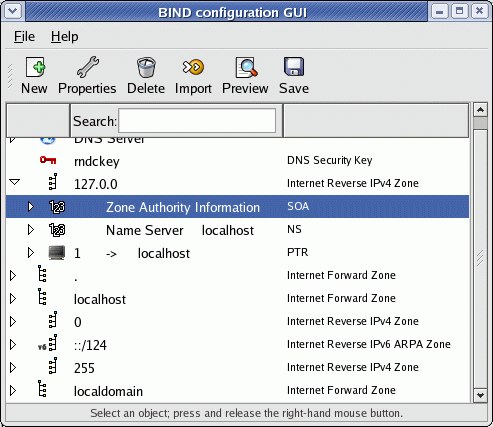
When resolving IP addresses for a domain, Internic is expecting a "Primary" and a "Secondary" DNS name server. (Sometimes called Master and Slave) Each DNS name server requires the file /etc/named.conf and the files it points to. This is typically two separate computer systems hosted on two different IP addresses. It is not necesary that the Linux servers be dedicated to DNS as they may run a web server, mail server, etc. Note on Bind versions: Red Hat versions 6.x used Bind version 8. Release 7.1 of Red Hat began using Bind version 9 and the GUI configuration tool bindconf was introduced for those of you that like a pretty point and click interface for configuration.
Installation Packages:
Red Hat / Fedora Core / CentOS: bind, bind-chroot, bind-libs, bind-utils, system-config-bind
bind-chroot: Security jail for operation of bind.
bind-utils: Utility commands like nslookup, host, dig
system-config-bind: GUI config tool system-config-bind and related configuration files (/etc/security/console.apps/bindconf).
caching-nameserver: We will not be covering this as it is not required for web hosting. This is used by internet providers so their clients can cache the DNS entries of the sites they are visiting.
Ubuntu (dapper/hardy) / Debian: bind9
Configuration files:
Red Hat / Fedora / CentOS:
File
Description
Directory
Chrooted Directory
named.conf
Primary/Secondary DNS server configuration.
(See default file /usr/share/doc/bind-9.X.X/sample/etc/named.conf)
/etc/
/var/named/chroot/etc/
named.root.hints
Configuration for recursive service. Required for all zones.
(See default file /usr/share/doc/bind-9.X.X/sample/etc/named.root.hints)
/etc/
/var/named/chroot/etc/
named
Red Hat system variables.
/etc/sysconfig/
no change
rndc.key
Primary/Secondary DNS server configuration.
/etc/
/var/named/chroot/etc/
Zone files
Configuration files for each domain. Create this file to resolve host name internet queries i.e. define IP address of web (www) and mail servers in the domain.
/var/named/
/var/named/chroot/var/named/
Debian / Ubuntu:
File
Description
Directory
Chrooted Directory
named.conf
named.conf.options
named.conf.local
Primary/Secondary DNS server configuration.
/etc/bind/
/var/bind/chroot/etc/bind/
rndc.key
Primary/Secondary DNS server configuration.
/etc/
/var/bind/chroot/etc/
Zone files
Configuration files for each domain.
/var/bind/data/
/var/bind/chroot/var/bind/data/
Primary server (master):
File: named.conf
Red Hat / Fedora Core / CentOS: /etc/named.conf (chroot dir: /var/named/chroot/etc/named.conf) and /etc/sysconfig/named for system variables. Ubuntu / Debian: /etc/bind/named.conf Place local definitions in /etc/bind/named.conf.options and /etc/bind/named.conf.local Simple example: (no views)
options { - Ubuntu stores options in /etc/bind/named.conf.options
version "Bind"; - Don't disclose real version to hackers
directory "/var/named"; - Specified so relative path names can be used. Full path names still allowed.
allow-transfer { XXX.XXX.XXX.XXX; }; - IP address of secondary DNS
recursion no;
auth-nxdomain no; - conform to RFC1035. (default)fetch-glue no;- Bind 8 only! Not used by version 9
};
zone "localhost" {
type master;
file "/etc/bind/db.local";
};
zone "0.0.127.in-addr.arpa" {
type master;
file "/etc/bind/db.127";
};
zone "your-domain.com"{ - Ubuntu separates the zone definitions into /etc/bind/named.conf.local
type master; - Specify master, slave, forward or hint
file "data/named.your-domain.com";
notify yes; - slave servers are notified when the zone is updated.
allow-update { none; }; - deny updates from other hosts (default: none)
allow-query { any; }; - allow clients to query this server (default: any)
};
zone "your-domain-2.com"{
type master;
file "data/named.your-domain-2.com";
notify yes;
};
Note:
The omission of zone ".". Required if providing a recursive service.
Ubuntu includes the separated file of zone directives using the directive: include "/etc/bind/named.conf.local";
BIND Views: The BIND naming service can support "views" which allow various sub-networks (i.e. private internal or public external networks) to have a different domain name resolution result.
If no views are specified then use the configuration shown above.
The match-up between the "view" and the view client which receives the DNS information is specified by the match-clients statement.
If even one view is specified, then ALL zones MUST be associated with a "view".
Bind 9 allows for views which allow different zones to be served to different types of clients, localhost, private networks and public networks. This maps to the three view names "localhost_resolver", "internal" and "external":
localhost_resolver: Supports name resolution for the system (localhost) using BIND. Support for use of bind also has to be configured in /etc/nsswitch.conf
internal: User specified Local Area Network (LAN). If not used to support a local private LAN, remove (or comment out) this view.
external: The general public internet defined as client "any".
If you are only setting up a caching name server, then only specify the view "localhost_resolver" (delete all other views).
In order to support a DNS for internet domains using views, one will have to configure an "external" view
Typical Red Hat Enterprise 5 example: (Bind 9.3.4 with three "views")
options
{
        directory "/var/named"; // the default
        dump-file               "data/cache_dump.db";
        statistics-file         "data/named_stats.txt";
        memstatistics-file      "data/named_mem_stats.txt";

};
logging
{
    //  By default, SELinux policy does not allow named to modify the /var/named
    //  directory, so put the default debug log file in data/ :

        channel default_debug {
                file "data/named.run";
                severity dynamic;
        };
};
view "localhost_resolver"
{
    //  This view sets up named to be a localhost resolver ( caching only nameserver ).
    //  If all you want is a caching-only nameserver, then you need only define this view:
    match-clients           { localhost; };
    ...
};
view "internal"
{
    // This view will contain zones you want to serve only to "internal" clients
    // that connect via your directly attached LAN interfaces - "localnets" .
    // For local private LAN. Not covered in this tutorial.
    // Delete this view if web hosting with no local LAN.
    match-clients           { localnets; };
    ...
};
key ddns_key
{
        algorithm hmac-md5;
        secret "use /usr/sbin/dns-keygen to generate TSIG keys";
};
view    "external"
{
    // This view will contain zones you want to serve only to "external"
    // public internet clients. This is covered below.
    match-clients           { any; };
    ...
    ..
};
Default configuration files: Red Hat may supply the default configuration in: /usr/share/doc/bind-9.X.X/sample/etc/named.conf
cp /usr/share/doc/bind-9.X.X/sample/var/named/localdomain.zones /var/named/chroot/var/named
also from /usr/share/doc/bind-9.X.X/sample/var/named/: localhost.zones, named.local, named.zero, named.broadcast, named.ip6.local, named.root
view "external": (master) - details -
view    "external"
{
/* This view will contain zones you want to serve only to "external" clients
 * that have addresses that are not on your directly attached LAN interface subnets:
 */
        match-clients           { any; };
        match-destinations      { any; };
        allow-transfer { XXX.XXX.XXX.XXX; };  - IP address of secondary DNS

        recursion no;
        // you'd probably want to deny recursion to external clients, so you don't
        // end up providing free DNS service to all takers

        // all views must contain the root hints zone:
        include "/etc/named.root.hints";

        // These are your "authoritative" external zones, and would probably
        // contain entries for just your web and mail servers:

        zone "your-domain.com" {
                type master;
                file "/var/named/data/external/named.your-domain.com";
                notify yes;
                allow-update { none; };
        };

        // You can also add the zones as a separate file like they do in Ubuntu by adding the following statement
        include "/etc/named.conf.local";
};
DNS key:
Use the following command /usr/sbin/dns-keygen to create a key. Add this key to the "secret" statement as follows:
Forward Zone File: /var/named/named.your-domain.com
Red Hat 9 / CentOS 3: /var/named/named.your-domain.com Red Hat EL4/5, Fedora 3+, CentOS 4/5: [Chrooted] /var/named/chroot/var/named/data/named.your-domain.com Red Hat EL4/5, Fedora 3+, CentOS 4/5: /var/named/data/named.your-domain.com Ubuntu / Debian: /etc/bind/data/named.your-domain.com
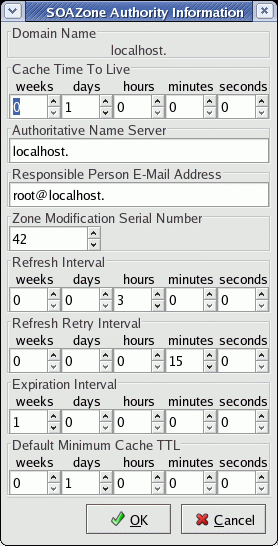
$TTL 604800- Bind 9 (and some of the later versions of Bind 8) requires $TTL statement. Measured in seconds. This value is 7 days.your-domain.com. IN SOA ns1.your-domain.com. hostmaster.your-domain.com. (
2000021600 ; serial - Many people use year+month+day+integer as a system. Never greater than 2147483647 for a 32 bit processor.
86400 ; refresh - How often secondary servers (in seconds) should check in for changes in serial number. (86400 sec = 24 hrs)
7200 ; retry - How long secondary server should wait for a retry if contact failed.
1209600 ; expire - Secondary server to purge info after this length of time.
86400 ) ; default_ttl - How long data is held in cache by remote servers.
IN A XXX.XXX.XXX.XXX- Note that this is the default IP address of the domain.
I put the web server IP address here so that domain.com points to the same servers as www.domain.com
;
; Name servers for the domain
;
IN NS ns1.your-domain.com.
IN NS ns2.your-domain.com.
;
; Mail server for domain
;
IN MX 5 mail - Identify "mail" as the node handling mail for the domain. Do NOT specify an IP address!
;
; Nodes in domain
;
node1 IN A XXX.XXX.XXX.XXX- Note that this is the IP address of node1
ns1 IN A XXX.XXX.XXX.XXX- Optional: For hosting your own primary name server. Note that this is the IP address of ns1
ns2 IN A XXX.XXX.XXX.XXX- Optional: For hosting your own secondary name server. Note that this is the IP address of ns2
mail IN A XXX.XXX.XXX.XXX- Identify the IP address for node mail.
IN MX 5 XXX.XXX.XXX.XXX- Identify the IP address for mail server named "mail".
;
; Aliases to existing nodes in domain
;
www IN CNAME node1 - Define the webserver "www" to be node1.
ftp IN CNAME node1 - Define the ftp server to be node1.
MX records for 3rd party off-site mail servers:
your-domain.com. IN MX 10 mail1.offsitemail.com.your-domain.com. IN MX 20 mail2.offsitemail.com.
Append to the above file.
Initial configuration: Note that Red Hat may supply the default zone configuration in: /usr/share/doc/bind-9.X.X/sample/var/named/
A file suffix of "zone" is also common i.e. your-domain.com.zone
Secondary server (slave):
File: named.conf
Red Hat / Fedora Core / CentOS: /etc/named.conf Ubuntu / Debian: /etc/bind/named.conf Simple example with no views:
options { - Ubuntu stores options in /etc/bind/named.conf.options
version "Bind"; - Don't disclose real version to hackers
directory "/var/named";
allow-transfer { none; };- Slave is not transfering updates to anyone else
recursion no;
auth-nxdomain no; - conform to RFC1035. (default)fetch-glue no;- Bind 8 only! Not used by version 9
};
zone "localhost" {
type master;
file "/etc/bind/db.local"; - Ubutu: /etc/bind/db.local, Red Hat: /var/named/named.local
};
zone "0.0.127.in-addr.arpa" {
type master;
file "/etc/bind/db.127";
};
zone "your-domain.com"{
type slave;
file "named.your-domain.com"; - Specify slaves/named.your-domain.com for RHEL4/5 chrooted bind
masters { XXX.XXX.XXX.XXX; }; - IP address of primary DNS
};
zone "your-domain-2.com"{
type slave;
file "named.your-domain-2.com";
masters { XXX.XXX.XXX.XXX; };
};
view "external": (slave)
view    "external"
{
        match-clients           { any; };
        match-destinations      { any; };
        allow-transfer { none; };  - Slave does not transfer to anyone, slave receives
        recursion no;
        include "/etc/named.root.hints";

        zone "your-domain.com" {
                type slave;
                file "/var/named/slaves/external/named.your-domain.com";
                notify no;                  - Slave does not notify, slave is notified by master
                masters { XXX.XXX.XXX.XXX; }; - State IP of master server
        };
};
Note: RHEL4/5, CentOS 4/5, Fedora 3+ use chrooted directory structure permissions which require the use of the slaves subdirectory /var/named/slaves
Slave Zone Files: These are transfered from master to slave and chached by slave. There is no need to generate a zone file on the slave. Additional Information:
[Potential Pitfall]: Ubuntu dapper/hardy - Path names used can not violate Apparmor security rules as defined in /etc/apparmor.d/usr.sbin.named. Note that the slave files are typically named "/var/lib/bind/named.your-domain.com" as permitted by the security configuration. [Potential Pitfall]: Ubuntu dapper/hardy - Create log file and set ownership and permission for file not created by installation:
touch /var/log/bindlog
chown root.bind /var/log/bindlog
chmod 664 /var/log/bindlog
[Potential Pitfall]: Error in /var/log/messages:
transfer of 'yolinux.com/IN' from XXX.XXX.XXX.XXX#53: failed while receiving responses: permission denied
Named needs write permission on the directory containing the file. This condition often occurs for a new "slave" or "secondary" name server where the zone files do not yet exist. The default (RHEL4/5, CentOS 4/5, Fedora Core 3+, ...):
drwxr-x--- 4 root named 4096 Aug 25 2004 named
drwxrwx--- 2 named named 4096 Sep 17 20:37 slaves
Fix: In named.conf specify that the slaves to go to slaves directory /var/named/chroot/var/named/slaves with the directive:
file "slaves/named.your-domain.com";
Bind Defaults:
Uses port 53 if none is specified with the listen-on port statement.
Bind will use random ports above port 1024 for queries. For use with firewalls expecting all DNS traffic on port 53, specify the following option statement in /etc/named.conf
query-source address * port 53;
query-source-v6 port 53;
Logging is to /var/log/messages
After the configuration files have been edited, restart the name daemon.
/etc/init.d/named restart
(Note: Ubuntu / Debian restart: /etc/init.d/bind9 restart) Bind zone transfers work best if the clocks of the two systems are synchronised. See the YoLinux SysAdmin Tutorial: Time and ntpd File: /var/named/named.your-domain.com This is created for you by Bind on the slave (secondary) server when it replicates from Primary server.
DNS GUI configuration:
Red Hat EL 4/5, Fedora 2-10: /usr/bin/system-config-bind
Red Hat 8/9, Fedora Core 1: /usr/bin/redhat-config-bind
Test DNS:
Must install packages:
Red Hat / Fedora Core / SuSE: bind-utils
Ubuntu (dapper/hardy) / Debian: bind9-host
Test the name server with the host command in interactive mode:
Test your DNS with the following DNS diagnostics web site: DnsStuff.com
Extra logging to monitor Bind:
Add the following to your /etc/named.conf file.
logging {
        channel bindlog {
                           file "/var/log/bindlog"  versions 5 size 1m;     - Keep five old versions of the log-file (rotates logs)
                           print-time yes;
                           print-category yes;
                           print-severity yes;
                        };
/*      If you want to enable debugging, eg. using the 'rndc trace' command,
 *      named will try to write the 'named.run' file in the $directory (/var/named).
 *      By default, SELinux policy does not allow named to modify the /var/named directory,
 *      so put the default debug log file in data/ :
 */
        channel default_debug {
                file "data/named.run";
                severity dynamic;
        };
        category xfer-out { bindlog; };         - Zone transfers
        category xfer-in  { bindlog; };         - Zone transfers
        category security { bindlog; };         - Approved/unapproved requests

//      The following logging statements, panic, insist and response-checks are valid for Bind 8 only. Do not user for version 9.
        category panic { bindlog; };            - System shutdowns
        category insist { bindlog; };           - Internal consistency check failures
        category response-checks { bindlog; };  - Messages
};
Chroot Bind for extra security:
Note: Most modern Linux distributions default to a "chrooted" installation. This technique runs the Bind name service with a view of the filesystem which changes the definition of the root directory "/" to a directory in which Bind will operate. i.e. /var/named/chroot. The following example uses the Red Hat RPM bind-8.2.3-0.6.x.i386.rpm. Applies to Bind version 9 as well. The latest RedHat bind updates run the named as user "named" to avoid a lot of earlier hacker exploits. To chroot the process is to create an even more secure environment by limiting the view of the system that the process can access. The process is limited to the chrooted directory assigned. The chroot of the named process to a directory under a given user will prevent the possibility of an exploit which at one time would result in root access. The original default RedHat configuration (6.2) ran the named process as root, thus if an exploit was found, the named process will allow the hacker to use the privileges of the root user. (no longer true) Named Command Sytax:
named -u user -g group -t directory-to-chroot-to
Example:
named -u named -g named -t /opt/named
When chrooted, the process does not have access to system libraries thus a local lib directory is required with the appropriate library files - theoretically. This does not seem to be the case here and as noted above in chrooted FTP. It's a mystery to me but it works???? Another method to handle libraries is to re-compile the named binary with everything statically linked. Add -static to the compile options. The chrooted process should also require a local /etc/named.conf etc... but doesn't seem to??? Script to create a chrooted bind environment:
#!/bin/sh
cd /opt
mkdir named
cd named
mkdir etc
mkdir bin
mkdir var
cd var
mkdir named
mkdir run
cd ..
chown -R named.named bin etc var
You can probably stop here. If your system acts like a chrooted system should, then continue with the following:
cp -p /etc/named.conf etc
cp -p /etc/localtime  etc
cp -p /bin/false bin
echo "named:x:25:25:Named:/var/named:/bin/false" > etc/passwd
echo "named:x:25:" > etc/group
touch  var/run/named.pid

if [ -f /etc/namedb ]
then
   cp -p /etc/namedb etc/namedb
fi

mkdir dev
cd dev

# Create a character unbuffered file.
mknod -m ugo+rw null c 1 3

cd ..
chown -R named.named bin etc var
Add changes to the init script: /etc/rc.d/init.d/named
#!/bin/bash
#
# named           This shell script takes care of starting and stopping
#                 named (BIND DNS server).
#
# chkconfig: - 55 45
# description: named (BIND) is a Domain Name Server (DNS) \
# that is used to resolve host names to IP addresses.
# probe: true

# Source function library.
. /etc/rc.d/init.d/functions

# Source networking configuration.
. /etc/sysconfig/network

# Check that networking is up.
[ ${NETWORKING} = "no" ] && exit 0

[ -f /etc/sysconfig/named ] && . /etc/sysconfig/named  - Added in Red Hat version 7.1

[ -f /usr/sbin/named ] || exit 0

[ -f /etc/named.conf ] || exit 0

RETVAL=0

start() {
        # Start daemons.
        echo -n "Starting named: "
        daemon named -u named -g named -t /opt/named   - Change made here
	RETVAL=$?
 	[ $RETVAL -eq 0 ] && touch /var/lock/subsys/named
	echo
	return $RETVAL
}
stop() {
        # Stop daemons.
        echo -n "Shutting down named: "
        killproc named
	RETVAL=$?
	[ $RETVAL -eq 0 ] && rm -f /var/lock/subsys/named
        echo
	return $RETVAL
}
rhstatus() {
	/usr/sbin/ndc status
	return $?
}
restart() {
	stop
	start
}
reload() {
	/usr/sbin/ndc reload
	return $?
}
probe() {
	# named knows how to reload intelligently; we don't want linuxconf
	# to offer to restart every time
	/usr/sbin/ndc reload >/dev/null 2>&1 || echo start
	return $?
}

# See how we were called.
case "$1" in
	start)
		start
		;;
	stop)
		stop
		;;
	status)
		rhstatus
		;;
	restart)
		restart
		;;
	condrestart)
		[ -f /var/lock/subsys/named ] && restart || :
		;;
	reload)
		reload
		;;
	probe)
		probe
		;;
	*)
        	echo "Usage: named {start|stop|status|restart|condrestart|reload|probe}"
		exit 1
esac

exit $?
Note: The current version of bind from the RedHat errata updates and security fixes (http://www.redhat.com/support/errata/) runs the named process as user "named" in the home (not chrooted) directory /var/named with no shell available. (named -u named) This should be secure enough. Proceed with a chrooted installation if your are paranoid.
See:
Chrooted DNS configuration:
Modern releases of Linux (i.e. Fedore Core 3, Red Hat Enterprise Linux 4) come preconfigured to use "chrooted" bind. This security feature forces even an exploited version of bind to only operate within the "chrooted" jail /var/named/chroot which contains the familiar directories:
/var/named/chroot/etc: Configuration files
/var/named/chroot/dev: devices used by bind:
/dev/null
/dev/random
/dev/zero
(Real devices created with the mknod command.)
/var/named/chroot/var: Zone files and configuration information.
These directories are generated and configured by the Red Hat/Fedora RPM package "bind-chroot". If building from source you will have to generate this configuration manually:
Load Balancing of servers using Bind: DNS Round-Robin
This will populate name servers around the world with different IP addresses for your web server www.your-domain.com
www0   IN  A       XXX.XXX.XXX.1
            www1   IN  A       XXX.XXX.XXX.2
            www2   IN  A       XXX.XXX.XXX.3
            www3   IN  A       XXX.XXX.XXX.4
            www4   IN  A       XXX.XXX.XXX.5
            www5   IN  A       XXX.XXX.XXX.6

            www    IN  CNAME   www0.your-domain.com.
                   IN  CNAME   www1.your-domain.com.
                   IN  CNAME   www2.your-domain.com.
                   IN  CNAME   www3.your-domain.com.
                   IN  CNAME   www4.your-domain.com.
                   IN  CNAME   www5.your-domain.com.
                   IN  CNAME   www6.your-domain.com.
UltraDNS.com - Outsourced DNS management and service
OpenDNS.com - Can allow forwarding to OpenDNS servers.
Add to "options" section: forwarders { 208.67.222.222; 208.67.222.220; };
DynDNS.org
Command: ipcheck.py -i eth0 DynDNS-user-idpasswordnode.dnsalias.net
Then add script update.dyndns.ip to directory /etc/cron.daily/ to update IP.
This host must also be allowed access through any firewall rules.
DynDNS/TODD - Dynamic DNS for those with dynamic IP addresses. (i.e. dial-up game servers etc.)
BuyDomains.com - Buy a domain name that a squatter is holding.
Note that the Name registrations policies for the registrars are stated at ICANN.org.
You must renew with the same registrar within five days BEFORE the expiration date. There is no rule for afterwards.
Most free a domain name 30 days after it expires.
Web Server Load Balancing:
Load balancing becomes important if your traffic volume becomes too great for either your server or network connection or both. Multiple options are available for load balancing.
DNS round-robin: Discussed above, this uses DNS to point users to random server in a list of appropriate servers. This spreads the load among the servers in the list.
Use a Linux Virtual Server to Create a Load Balance Cluster. See next section below.
Run a reverse proxy. See nginx ("engine X"). From a single external internet network connection, route http, smtp, imap or pop3 traffic to various servers on an internal network. Results are pushed back to the nginx proxy for routing to the internet (no caching).
Run the Apache httpd web server module "mod_proxy" to offload processing of dynamic content to another web server. This acts as a reverse proxy, routing external traffic to various servers on an internal network.
Using a Linux Virtual Server to Create a Load Balance Cluster:
You can use a single Linux server to forward requests to a cluster of servers using iptables for IP masquerading and IPVsadm to scale your load. The load balancing server receiving and routing the requests is called the "Linux Virtual Server" (LVS). The LVS receives the requests which are passed to the real servers which process and reply to the request. This reply is forwarded to the client by the LVS.
This feature is available with the Linux 2.4/2.6 kernel. (If compiling kernel: Networking Options + IP: Virtual Server Configuration)
Configuration: This example will load balance http traffic to three web servers and ftp traffic to a fourth server.
Create virtual service and choose scheduler for http (80) and ftp (21):
ipvsadm -A -t 66.218.88.103:80 -s wlc
ipvsadm -A -t 66.218.88.103:21 -s wrr
Command directives:
A: Add a virtual service defined by IP address, port number, and protocol.
-t: Use TCP service host:port
-s: scheduler:
rr: Robin Robin: distributes jobs equally amongst the avail- able real servers.
wrr: Weighted Round Robin.
lc: Least-Connection: assigns more jobs to real servers with fewer active jobs.
wlc: (Default) Weighted Least-Connection: assigns more jobs to servers with fewer jobs and relative to the real server's weight.
lblc, lblcr, dh, sh, sed, nq. See man page.
Configure load balancing cluser.
ipvsadm -a -t 66.218.88.103:80 -r 176.168.1.1:80 -m
ipvsadm -a -t 66.218.88.103:80 -r 176.168.1.2:80 -m -w 2
ipvsadm -a -t 66.218.88.103:80 -r 176.168.1.3:80 -m
ipvsadm -a -t 66.218.88.103:21 -r 176.168.1.4:21 -m
Command directives:
-r: Real server.
-m: Use masquerading also known as network address translation (NAT)
-w: Weight is an integer specifying the capacity of a server rela- tive to the others in the pool. The valid values of weight are 0 through to 65535. The default is 1.
iptables - Administration tool for IPv4 packet filtering and NAT
ipvsadm - Administer the routing table on a Linux Virtual Server.
Managing Web Server Daemons:
To view if these services are running, type ps -aux and look for the httpd, inetd and named services (daemons). These are background processes necessary to perform the server tasks.
root       681  0.0  0.5  2304  744 ?        S    Sep09   0:01 named
   nobody   28123  0.0  1.1  3036 1420 ?        S    Oct06   0:00 httpd
   nobody   28186  0.0  0.7  3044  896 ?        S    Oct06   0:00 httpd
   root       385  0.0  0.1  1136  232 ?        S    Sep09   0:00 inetd
A new installation will most likely NOT start the named background process which may be started manually after configuration.
See the YoLinux Init Process Tutorial for more information.
The inetd (or xinetd) background process is the Internet daemon which starts FTP when an ftp request is made.
Sys Admin Script:
Script to prepare an account: (Red Hat/Fedora)
#!/bin/sh
# Author Greg Ippolito
# Requires: /opt/etc/AccountDefaults/pathmsg favicon.ico  mwh-mini_tr.gif etc.
#           /opt/bin/ftponly
#   You must be root to run this script.
#
if [ $# -eq 0 ]
then
   echo "Enter user id as a command argument"
else if [ -r /home/$1 ]
then
   echo "User's home directory already exists"
else
   echo "1)  Create user."
   adduser -m $1

   echo "2)  Set user Password."
   passwd $1

   echo "3)  Add read access to user directory so apache can read it."
   cd /home
   chmod ugo+rx $1
   cd $1

   echo "4)  Create web directories."
   mkdir public_html
   chown $1.$1 public_html
   chcon -R -h -u system_u -r object_r -t httpd_sys_content_t public_html
   cd public_html
   mkdir images
   chown $1.$1 images
   chcon -R -h -u system_u -r object_r -t httpd_sys_content_t images

   # Block potential for unauthenticated logins
   cd ../
   touch .rhosts
   chmod ugo-xrw .rhosts

   echo "5)  Create default web page"
   sed "/HEADING/s!HEADING!$1!" /opt/etc/AccountDefaults/default-index.html > index.html
   cp -p /opt/etc/AccountDefaults/favicon.ico .
   cp -p /opt/etc/AccountDefaults/default-logo.gif ./images
   cp -p /opt/etc/AccountDefaults/robots.txt .
   chown $1.$1 index.html favicon.ico robots.txt
   chcon -R -h -t httpd_sys_content_t index.html favicon.ico robots.txt
   chcon -R -h -t httpd_sys_content_t images/default-logo.gif

   echo "6)  Edit /etc/passwd file - change user shell to /opt/bin/ftponly"
   cp -p  /etc/passwd /etc/passwd-`date +%m%d%y`
   sed "/^$1/s!/bin/bash!/opt/bin/ftponly!" /etc/passwd-`date +%m%d%y` > /etc/passwd

#wu-ftp# Requires: /etc/ftpaccess guestuser restrict-uid
#wu-ftp#   echo "7)  Add user to /etc/ftpaccess file"
#wu-ftp#   cp -p  /etc/ftpaccess /etc/ftpaccess-`date +%m%d%y`
#wu-ftp#   sed "/^guestuser/s!guestuser !guestuser $1 !" /etc/ftpaccess-`date +%m%d%y` > /etc/ftpaccess
#wu-ftp#   sed "/^restricted-uid/s!restricted-uid !restricted-uid $1 !" /etc/ftpaccess-`date +%m%d%y` > /etc/ftpaccess
#wu-ftp#   echo "guest-root /home/$1/public_html $1" >> /etc/ftpaccess

   echo "7)  Add user to vsftpd chroot list
   cat `echo $1` >> /etc/vsftpd/vsftpd.chroot_list

   echo "8)  Setting Disk Quotas to default 50Mb limit:"
#  Use user johndoe as a prototype.
   edquota -p johndoe $1

   echo "9)  Admin Follow-up:"
   echo "     Modify quota.user if different than default"
   echo "     Make changes to Bind names services on dns1 and dns2 if necessary"
   echo "       Change /etc/http/conf/httpd.conf or
   echo "       add config to /etc/http/conf.d/ if using a new domain name"
   echo "       Add e-mail aliases to mail server if necessary"
fi
fi
List of Internet Exchanges - An Internet Exchange (IX) is a junction between multiple principle Internet communication lines. A colo hosted at or close to an IX will have your best ability to handle traffic and your lowest latencies.
InternetSeer: Web site monitoring service - Free and subscription services. They will email you a report weekly on the daily performance: web site outages, time on error, % uptime, and connect time (sec).







Comments