LINUX TCP/IP Network Configuration Files:
TCP/IP Network Configuration Files:
The following GUI tools edit the system configuration files. There is no difference in the configuration developed with the GUI tools and that developed by editing system configuration files directly.
Computers may be assiged a static IP address or assigned one dynamically. Typically a server will require a static IP while a workstation will use DHCP (dynamic IP assignment). The Linux server requires a static IP so that those who wish to use its resources can find the system. It is more easily found if the IP address does not change and is static. This is not important for the Linux client workstation and thus it is easier to use an automated Dynamic Host Configuration Protocol (DHCP) for IP address assignment.
The IANA has allocated IP addresses in the range of 192.168.0.0 to 192.168.255.255 for private networks.
Helpful tools:
File: /etc/network/interfaces
The Red Hat configuration tools store the configuration information in the file /etc/sysconfig/network.
They will also allow one to configure routing information.
To disable DHCP change BOOTPROTO=dhcp to BOOTPROTO=none In order for updated information in any of these files to take effect, one must issue the command: service network restart (or: /etc/init.d/network restart)
This is a three step process:
Change the host name using GUI tool: /usr/sbin/system-config-network
(Red Hat / Fedora / CentOS)
Hostname entries are made in two places:
Assign more than one IP address to one ethernet card:
Note: The Apache web server can be configured so that different IP addresses can be assigned to specific domains being hosted. See Apache configuration and "configuring an IP based virtual host" in the YoLinux Web site configuration tutorial.
DHCP Linux Client: get connection info: /sbin/pump -i eth0 --status
(Red Hat Linux 7.1 and older)
Example 192=128+64
Some addresses are reserved and outside this scope. Loopback (127.0.0.1), reserved class C 192.168.XXX.XXX, reserved class B 172.31.XXX.XXX and reserved class A 10.XXX.XXX.XXX.
Subnet Example:
The concept of network classes is a little obsolete as subnets are now used to define smaller networks. These subnets may be part of a class A, B, C, etc network. For historical reference the network classes are defined as follows:
Forwarding allows the network packets on one network interface (i.e. eth0) to be forwarded to another network interface (i.e. eth1). This will allow the Linux computer to conect ("ethernet bridge") or route network traffic. The bridge configuration will merge two (or several) networks into one single network topology. IpTables firewall rules can be used to filter traffic.
A router configuration can support multicast and basic IP routing using the "route" command. IP masquerading (NAT) can be used to connect private local area networks (LAN) to the internet or load balance servers.
The TCP Man page - Linux Programmer's Manual and /usr/src/linux/Documentation/proc.txt (Kernel 2.2 RH 7.0-) cover /proc/sys/net/ipv4/* file descriptions.
Also see: (YoLinux tutorials)
Manual method: This does not alter the permanent configuration and will only configure support until the next reboot.
Systems with two NIC cards: Typically two cards are used when connecting to two networks. In this case the device must be defined using one of three methods:
This is usually not necessary because most ethernet adapters can auto-negotiate link speed and duplex setting.
Static routes: IP (Internet Protocol) uses a routing table to determine where packets should be sent. First the packet is examined to see if its' destination is for the local or remote network. If it is to be sent to a remote network, the routing table is consulted to determine the path. If there is no information in the routing table then the packet is sent to the default gateway. Static routes are set with the route command and with the configuration file
(Red Hat/Fedora): /etc/sysconfig/network-scripts/route-eth0
or
(Red Hat 7: /etc/sysconfig/static-routes)
(S.u.s.e. 9.2: /etc/sysconfig/network/routes):
Man pages:
The network listening daemons listen and respond to all network socket connections made on the TCP/IP ports assigned to it. The ports are defined by the file /etc/services. When a connection is made, the listener will attempt to invoke the assigned program and pipe the data to it. This simplified matters by allowing the assigned program to read from stdin instead of making its own sockets connection. The listener hadles the network socket connection. Two network listening and management daemons have been used in Red Hat Linux distributions:
The "rwho" command is used to display users logged into computers on your LAN.
By default, Red Hat Linux has the network interface to the rwhod disabled. Thus if one issues the command "rwho", you will only see who is logged into the system you are logged into and not remote systems on the network. This is a safe approach for internet servers as it reduces the exposure of a service which could be exploited by hackers. If you wish to use rwhod on a local private and firewall protected network, here is how:
Allow broacast capabilities. Edit /etc/init.d/rwhod
change from: daemon rwhod
to: daemon rwhod -b
Start service:
Portmpper is a network service required to support RPC's. Many services such as NFS (file sharing services) require portmapper.
List RPC services supported: [root]# rpcinfo -p localhost
Starting portmap server:
Pluggable Authentication Modules for Linux (TCP Wrappers)
This system allows or denies network access. One can reject or allow specific IP addresses or subnets to access your system.
File: /etc/hosts.allow
Note the beginning ".". File: /etc/hosts.deny
File: /etc/inetd.conf
Advanced PAM: More specific access can be assigned and controlled by controlling the level of authentication required for access.
Files reflect the inet service name. Rules and modules are stacked to achieve the level of security desired.
See the files in /etc/pam.d/... (some systems use /etc/pam.conf)
The format: service type control module-path module-arguments
For more info see:
ICMP is the network protocol used by the ping and traceroute commands.
ICMP redirect packets are sent from the router to the host to inform the host of a better route. To enable ICMP redirect, add the following line to /etc/sysctl.conf :
NOTE: This may leave you vulnerable to hackers as attackers may alter your routes.
The following firewall rules will drop ICMP requests.
SNORT: Monitor the network, performing real-time traffic analysis and packet logging on IP networks for the detection of an attack or probe.
Ethernet hosts use the Address Resolution Protocol (ARP) to convert a 32-bit internet IP addresses into a 48-bit Ethernet MAC address used by network hardware. (See: RFC 826) ARP broadcasts are sent to all hosts on the subnet by the data transmitting host to see who replies. The broadcast is ignored by all except the intended receiver which recognizes the IP address as its own. The MAC addresses are remembered (APR cache) for future network communications. Computers on the subnet typically keep a cache of ARP responses. ARP broadcasts are passed on by hubs and switches but are blocked by routers.
Reverse ARP (See: RFC 903) is a bootstrap protocol which allows a client to broadcast requesting a server to reply with its IP address.
Regular network exchanges of data are peer to peer unicast transactions. An HTTP request to a web server (TCP/IP), email SNMP (TCP/IP), DNS (UDP), FTP (TCP/IP), ... are all peer to peer unicast transactions. If one wants to transmit a video, audio or data stream to multiple nodes with one transmission stream instead of multiple individual peer to peer connections, one for each node, one may use multicasting to reduce network load. Note that multicast and a network broadcast are different. Multicast messages are only "heard" by the nodes on the network that have "joined the multicast group" which are those that are interested in the information.
The Linux kernel is Level-2 Multicast-Compliant. It meets all requirements to send, receive and act as a router for multicast datagrams. For a process to receive multicast datagrams it has to request the kernel to join the multicast group and bind the port receiving the datagrams. When a process is no longer interested in the multicast group, a request is made to the kernel to leave the group. It is the kernel/host which joins the multicast group and not the process. Kernel configuration requires "CONFIG_IP_MULTICAST=y". In order for the Linux kernel to support multicast routing, set the following in the kernel config:
See the YoLinux tutorial on optimization and rebuilding the Linux kernal.
Note that on multihomed systems (more than one IP address/network card), only one device can be configured to handle multicast.
Class D networks with a range of IP addresses from 224.0.0.0 to 239.255.255.255 (See Network Classes above) have typically been reserved for multicast.
Usefull commands:
-
File Description /etc/resolve.conf List DNS servers for internet domain name resolution /etc/hosts Lists hosts to be resolved locally (not by DNS) /etc/nsswitch.conf List order of host name search. Typically look at local files, then NIS server, then DNS server. Red Hat/Fedora/CentOS: /etc/sysconfig/network Specify network configuration. eg. Static IP, DHCP, NIS, etc. Red Hat/Fedora/CentOS: /etc/sysconfig/network-scripts/ifcfg-device Specify TCP network information. Ubuntu/Debian: /etc/network/interfaces Specify network configuration and devices. eg. Static IP and info, DHCP, etc.
| Domain Resolution Configuration Files: |
- File: /etc/resolv.conf - host name resolver configuration file
-
search name-of-domain.com  - Name of your domain or ISP's domain if using their name server
nameserver XXX.XXX.XXX.XXX - IP address of primary name server
nameserver XXX.XXX.XXX.XXX - IP address of secondary name server
Red Hat/Fedora GUI: /usr/sbin/system-config-network (select tab "DNS".
-
- File: /etc/hosts - locally resolve node names to IP addresses
-
127.0.0.1         your-node-name.your-domain.com  localhost.localdomain  localhost
XXX.XXX.XXX.XXX   node-name
XXX.XXX.XXX.XXX superserver.yolinux.com superserverThis informs Linux of local systems on the network which are not handled by the DNS server. (or for all systems in your LAN if you are not using DNS or NIS)
Red Hat/Fedora GUI: /usr/sbin/system-config-network (select tab "Hosts".
-
- File: /etc/nsswitch.conf - System Databases and Name Service Switch configuration file
-
hosts: files dns nisplus nis
-
| Fedora / Red Hat Network Configuration Files: |
- /etc/sysconfig/network Red Hat network configuration file used by the system during the boot process.
- File: /etc/sysconfig/network-scripts/ifcfg-eth0
Configuration settings for your first ethernet port (0). Your second port is eth1.
- File:
- /etc/modprobe.conf (kernel 2.6)
- /etc/modules.conf (kernel 2.4)
- (or for older systems: /etc/conf.modules)
-
alias eth0 eepro100
| Fedora / Red Hat Network GUI Configuration Tools: |
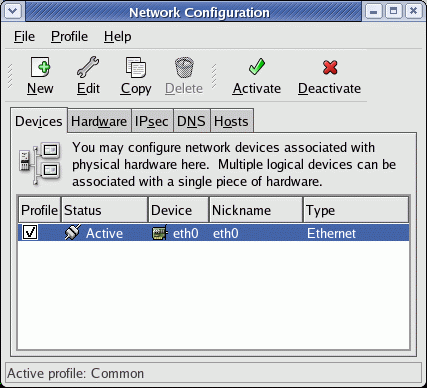
TCP/IP ethernet configuration:
|  |
| Assigning an IP address: |
Static IP address assignment:
Choose one of the following methods:- Command Line:
/sbin/ifconfig eth0 192.168.10.12 netmask 255.255.255.0 broadcast 192.168.10.255
Network address by convention would be the lowest: 192.168.10.0
Broadcast address by convention would be the highest: 192.168.10.255
The gateway can be anything, but following convention: 192.168.10.1 Note: the highest and lowest addresses are based on the netmask. The previous example is based on a netmask of 255.255.255.0
- Red Hat / Fedora GUI tools:
- /usr/bin/neat Gnome GUI network administration tool. Handles all interfaces. Configure for Static IP or DHCP client.
(First available with Red Hat 7.2.) - /usr/bin/netcfg (Handles all interfaces) (last available in Red Hat 7.1)
- /usr/bin/neat Gnome GUI network administration tool. Handles all interfaces. Configure for Static IP or DHCP client.
- Red Hat / Fedora Console tools:
- /usr/sbin/system-config-network-tui (Text User Interface)
- /usr/sbin/netconfig (Only seems to work for the first network interface eth0 but not eth1,...)
- Directly edit configuration files/scripts. See format below.
The IANA has allocated IP addresses in the range of 192.168.0.0 to 192.168.255.255 for private networks.
Helpful tools:
- Network Calculators: Subnet mask calculator, node calculator, mask inverter, ...
- IP subnet calculator
| Ubuntu / Debian IP Configuration Files: |
- Static IP example:
Dynamic IP (DHCP) example:auto lo iface lo inet loopback auto eth0 iface eth0 inet static address 208.88.34.106 netmask 255.255.255.248 broadcast 208.88.34.111 network 208.88.34.104 gateway 208.88.34.110
Interfaces:auto lo iface lo inet loopback auto eth0 iface eth0 inet dhcp auto eth1 iface eth1 inet dhcp auto eth2 iface eth2 inet dhcp auto ath0 iface ath0 inet dhcp auto wlan0 iface wlan0 inet dhcp
- lo: Loopback interface (network within your system without slowing down for the real ethernet based network)
- eth0: First ethernet interface card
- wlan0: First wireless network interface
| Red Hat / Fedora Core IP Configuration Files: |
They will also allow one to configure routing information.
- File: /etc/sysconfig/network Static IP address Configuration: (Configure gateway address)
-
NETWORKING=yes
HOSTNAME=my-hostname      - Hostname is defined here and by command hostname
FORWARD_IPV4=true         - True for NAT firewall gateways and linux routers.
                            False for everyone else - desktops and servers.
GATEWAY="XXX.XXX.XXX.YYY" - Used if your network is connected to another network or the internet.
                            Static IP configuration. Gateway not defined here for DHCP client.
-
(Gateway is assigned by DHCP server.)NETWORKING=yes HOSTNAME=my-hostname - Hostname is defined here and by command hostname
-
NETWORKING=yes HOSTNAME=my-hostname - Hostname is defined here and by command hostname NISDOMAIN=NISProject1 - NIS domain to attach
-
- File (Red Hat/Fedora): /etc/sysconfig/network-scripts/ifcfg-eth0
(S.u.s.e.: /etc/sysconfig/network/ifcfg-eth-id-XX:XX:XX:XX:XX)
This file used by the command scripts ifup and ifdown Static IP address configuration:
-
RHEL4/FC3 additions:DEVICE=eth0 BOOTPROTO=static BROADCAST=XXX.XXX.XXX.255 IPADDR=XXX.XXX.XXX.XXX NETMASK=255.255.255.0 NETWORK=XXX.XXX.XXX.0 ONBOOT=yes - Will activate upon system boot- TYPE=Ethernet
- HWADDR=XX:XX:XX:XX:XX:XX
- GATEWAY=XXX.XXX.XXX.XXX
-
RHEL4/FC3 additions:DEVICE=eth0 ONBOOT=yes BOOTPROTO=dhcp
- IPV6INIT=no
- USERCTL=no
- PEERDNS=yes
- TYPE=Ethernet
- HWADDR=XX:XX:XX:XX:XX:XX
-
To disable DHCP change BOOTPROTO=dhcp to BOOTPROTO=none In order for updated information in any of these files to take effect, one must issue the command: service network restart (or: /etc/init.d/network restart)
| Changing the host name: |
- Issue the command: hostname new-host-name
- Change network configuration file: /etc/sysconfig/network
Edit entry: HOSTNAME=new-host-name - Restart systems which relied on the hostname (or reboot):
- Restart network services: service network restart
(or: /etc/init.d/network restart) - Restart desktop:
- Bring down system to console mode: init 3
- Bring up X-Windows: init 5
- Restart network services: service network restart
Change the host name using GUI tool: /usr/sbin/system-config-network
(Red Hat / Fedora / CentOS)
Hostname entries are made in two places:
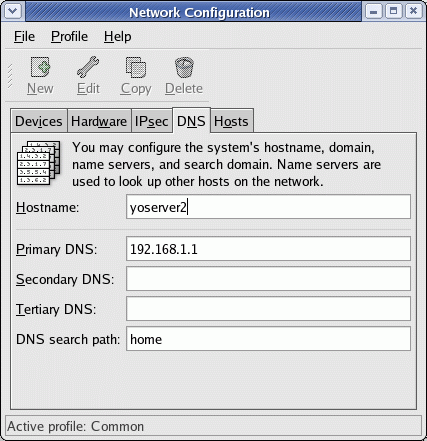 | 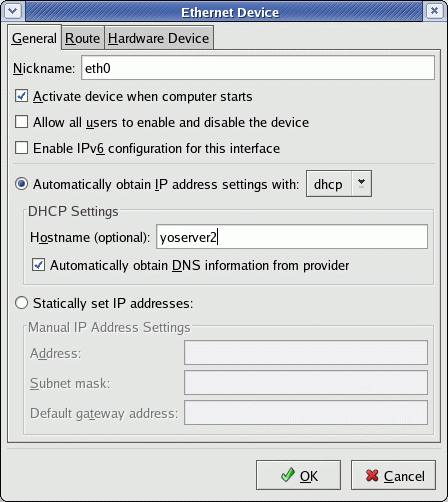 |
| Select the "DNS" tab. | Select the "Devices" tab + "Edit" + the "General" tab. |
| Network IP aliasing: |
ifconfig eth0   XXX.XXX.XXX.XXX netmask 255.255.255.0 broadcast XXX.XXX.XXX.255
    ifconfig eth0:0 192.168.10.12   netmask 255.255.255.0 broadcast 192.168.10.255
    ifconfig eth0:1 192.168.10.14   netmask 255.255.255.0 broadcast 192.168.10.255

    route add -host XXX.XXX.XXX.XXX dev eth0
    route add -host 192.168.10.12 dev eth0
    route add -host 192.168.10.14 dev eth0
In this example 0 and 1 are aliases in addition to the regular eth0. The result of the ifconfig command: eth0 Link encap:Ethernet HWaddr 00:10:4C:25:7A:3F
inet addr:XXX.XXX.XXX.XXX Bcast:XXX.XXX.XXX.255 Mask:255.255.255.0
UP BROADCAST RUNNING MULTICAST MTU:1500 Metric:1
RX packets:14218 errors:0 dropped:0 overruns:0 frame:0
TX packets:1362 errors:0 dropped:0 overruns:0 carrier:0
collisions:1 txqueuelen:100
Interrupt:5 Base address:0xe400
eth0:0 Link encap:Ethernet HWaddr 00:10:4C:25:7A:3F
inet addr:192.168.10.12 Bcast:192.168.10.255 Mask:255.255.255.0
UP BROADCAST RUNNING MULTICAST MTU:1500 Metric:1
Interrupt:5 Base address:0xe400
eth0:1 Link encap:Ethernet HWaddr 00:10:4C:25:7A:3F
inet addr:192.168.10.14 Bcast:192.168.10.255 Mask:255.255.255.0
UP BROADCAST RUNNING MULTICAST MTU:1500 Metric:1
Interrupt:5 Base address:0xe400
Config file: /etc/sysconfig/network-scripts/ifcfg-eth0:0 -
DEVICE=eth0:0
ONBOOT=yes
BOOTPROTO=static
BROADCAST=192.168.10.255
IPADDR=192.168.10.12
NETMASK=255.255.255.0
NETWORK=192.168.10.0
ONBOOT=yes
Note: The Apache web server can be configured so that different IP addresses can be assigned to specific domains being hosted. See Apache configuration and "configuring an IP based virtual host" in the YoLinux Web site configuration tutorial.
DHCP Linux Client: get connection info: /sbin/pump -i eth0 --status
(Red Hat Linux 7.1 and older)
-
Device eth0
 IP: 4.XXX.XXX.XXX
 Netmask: 255.255.252.0
 Broadcast: 4.XXX.XXX.255
 Network: 4.XXX.XXX.0
 Boot server 131.XXX.XXX.4
 Next server 0.0.0.0
 Gateway: 4.XXX.XXX.1
 Domain: vz.dsl.genuity.net
 Nameservers: 4.XXX.XXX.1 4.XXX.XXX.2 4.XXX.XXX.3
 Renewal time: Sat Aug 11 08:28:55 2001
 Expiration time: Sat Aug 11 11:28:55 2001
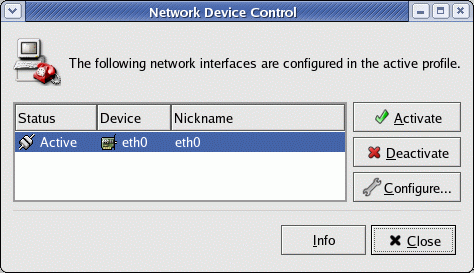
| Activating and De-Activating your NIC: |
Commands for starting and stopping TCP/IP network services on a Network Interface Card (NIC):
files in /etc/sysconfig/network-scripts/ GUI Interface control/configuration:
|  |
| Subnets: |
| M A S K | # OF SUB NETS | Slash Fmt | CLASS A HOSTS | CLASS A MASK | CLASS B HOSTS | CLASS B MASK | CLASS C HOSTS | CLASS C MASK | CLASS C SUB HOSTS | CLASS C SUB MASK |
|---|---|---|---|---|---|---|---|---|---|---|
| 255 | 1 or 256 | /32 | 16,777,214 | 255.0.0.0 | 65,534 | 255.255.0.0 | 254 | 255.255.255.0 | Invalid 1 address | 255.255.255.255 |
| 254 | 128 | /31 | 33,554,430 | 254.0.0.0 | 131,070 | 255.254.0.0 | 510 | 255.255.254.0 | Invalid 2 addresses | 255.255.255.254 |
| 252 | 64 | /30 | 67,108,862 | 252.0.0.0 | 262,142 | 255.252.0.0 | 1,022 | 255.255.252.0 | 2 hosts 4 addresses | 255.255.255.252 |
| 248 | 32 | /29 | 134,217,726 | 248.0.0.0 | 524,286 | 255.248.0.0 | 2,046 | 255.255.248.0 | 6 hosts 8 addresses | 255.255.255.248 |
| 240 | 16 | /28 | 268,435,454 | 240.0.0.0 | 1,048,574 | 255.240.0.0 | 4,094 | 255.255.240.0 | 14 hosts 16 addresses | 255.255.255.240 |
| 224 | 8 | /27 | 536,870,910 | 224.0.0.0 | 2,097,150 | 255.224.0.0 | 8,190 | 255.255.224.0 | 30 hosts 32 addresses | 255.255.255.224 |
| 192 | 4 | /26 | 1,073,741,822 | 192.0.0.0 | 4,194,302 | 255.192.0.0 | 16,382 | 255.255.192.0 | 62 hosts 64 addresses | 255.255.255.192 |
| 128 | 2 | /25 | 2,147,483,646 | 128.0.0.0 | 8,388,606 | 255.128.0.0 | 32,766 | 255.255.128.0 | 126 hosts 128 addresses | 255.255.255.128 |
| Binary position | 8 | 7 | 6 | 5 | 4 | 3 | 2 | 1 |
| Value | 128 | 64 | 32 | 16 | 8 | 4 | 2 | 1 |
| Example: 192 | 1 | 1 | 0 | 0 | 0 | 0 | 0 | 0 |
Some addresses are reserved and outside this scope. Loopback (127.0.0.1), reserved class C 192.168.XXX.XXX, reserved class B 172.31.XXX.XXX and reserved class A 10.XXX.XXX.XXX.
Subnet Example:
- Your ISP assigns you a subnet mask of 255.255.255.248 for your office.
- 208.88.34.104 Network Base address
- 208.88.34.105 Computer 1
- 208.88.34.106 Computer 2
- 208.88.34.107 Computer 3
- 208.88.34.108 Computer 4
- 208.88.34.109 Computer 5
- 208.88.34.110 DSL router/Gateway
- 208.88.34.111 Broadcast address
- Subnet Cheat Sheet
- Subnet calculator
- Table of subnets
- IP Subnetting, Variable Subnetting, and CIDR (Supernetting)
- CISCO.com: Subnet Masking and Addressing
| Network Classes: |
- Class A: Defined by the first 8 bits with a range of 0 - 127.
First number (8 bits) is defined by Internic i.e. 77.XXX.XXX.XXX
One class A network can define 16,777,214 hosts.
Range: 0.0.0.0 - 127.255.255.255 - Class B: Defined by the first 8 bits with a range from 128 - 191
First two numbers (16 bits) are defined by Internic i.e. 182.56.XXX.XXX
One class B network can define 65,534 hosts.
Range: 128.0.0.0 - 191.255.255.255 - Class C: Defined by the first 8 bits with a range from 192 - 223
First three numbers (24 bits) are defined by Internic i.e. 220.56.222.XXX
One class B network can define 254 hosts.
Range: 192.0.0.0 - 223.255.255.255 - Class D: Defined by the first 8 bits with a range from 224 - 239
This is reserved for multicast networks (RFC988)
Range: 224.0.0.0 - 239.255.255.255 - Class E: Defined by the first 8 bits with a range from 240 - 255
This is reserved for experimental use.
Range: 240.0.0.0 - 247.255.255.255
| Enable Forwarding: |
A router configuration can support multicast and basic IP routing using the "route" command. IP masquerading (NAT) can be used to connect private local area networks (LAN) to the internet or load balance servers.
- Turn on IP forwarding to allow Linux computer to act as a gateway or router.
echo 1 > /proc/sys/net/ipv4/ip_forward
Default is 0. One can add firewall rules by using ipchains. Another method is to alter the Linux kernel config file: /etc/sysctl.conf Set the following value:
-
net.ipv4.ip_forward = 1
-
FORWARD_IPV4=true
-
The TCP Man page - Linux Programmer's Manual and /usr/src/linux/Documentation/proc.txt (Kernel 2.2 RH 7.0-) cover /proc/sys/net/ipv4/* file descriptions.
Also see: (YoLinux tutorials)
- Configure Linux as an internet gateway router: Using Linux and iptables/ipchains to set up an internet gateway for home or office (iptables)
- Load balancing servers using LVS (Linux Virtual Server) (ipvsadm)
| Adding a network interface card (NIC): |
- cd /lib/modules/2.2.5-15/net/ - Use kernel version for your system. This example uses 2.2.5-15
(Fedora Core 3: /lib/modules/2.6.12-1.1381_FC3/kernel/net/)
Here you will find the modules supported by your system.
It can be permanently added to:- /etc/modprobe.conf (kernel 2.6)
- /etc/modules.conf (kernel 2.4)
- (or for older systems: /etc/conf.modules)
alias eth0 3c59x - /sbin/insmod 3c59x (For a 3Com ethernet card)
This inserts the specified module into the kernel. - /sbin/modprobe 3c59x
This also loads a module into the system kernel.
Modprobe command line options:- -r : to unload the module.
- /sbin/modprobe -l \* : list all modules.
- /sbin/modprobe -lt net \* : List only network modules
- /sbin/modprobe -t net \* : Try loading all network modules and see what sticks. (act of desperation)
- ifconfig ...
Systems with two NIC cards: Typically two cards are used when connecting to two networks. In this case the device must be defined using one of three methods:
- Use the Red Hat GUI tool /usr/bin/netcfg OR
- Define network parameters in configuration files: Define new device in file (Red Hat/Fedora) /etc/sysconfig/network-scripts/ifcfg-eth1
(S.u.s.e 9.2: /etc/sysconfig/network/ifcfg-eth-id-XX:XX:XX:XX:XX)
-
DEVICE=eth1
BOOTPROTO=static
IPADDR=192.168.10.12
NETMASK=255.255.255.0
GATEWAY=XXX.XXX.XXX.XXX
HOSTNAME=node-name.name-of-domain.com
DOMAIN=name-of-domain.com
(Red Hat/Fedora): /etc/sysconfig/static-routes
(S.u.s.e. 9.2: /etc/sysconfig/network/routes) Example:
-
eth1 net XXX.XXX.XXX.0 netmask 255.255.255.0 gw XXX.XXX.XXX.XXX
-
- Define network parameters using Unix command line interface: Define IP address:
ifconfig eth0  XXX.XXX.XXX.XXX netmask 255.255.255.0 broadcast XXX.XXX.XXX.255
    ifconfig eth1  192.168.10.12   netmask 255.255.255.0 broadcast 192.168.10.255
If necessary, define route with with the route command:
Examples:
route add default gw XXX.XXX.XXX.XXX dev eth0
  route add  -net  XXX.XXX.XXX.0  netmask 255.255.255.0 gw XXX.XXX.XXX.XXX dev eth0
Where XXX.XXX.XXX.XXX is the gateway to the internet as defined by your ISP or network operator. If a mistake is made just repeat the route command substituting "del" in place of "add".
| Configuring your NIC: Speed and Duplex settings: |
- List NIC speed and configuration: mii-tool
eth0: negotiated 100baseTx-FD flow-control, link ok Verbose mode: mii-tool -v
-
eth0: negotiated 100baseTx-FD flow-control, link ok
  product info: Intel 82555 rev 4
  basic mode:   autonegotiation enabled
  basic status: autonegotiation complete, link ok
  capabilities: 100baseTx-FD 100baseTx-HD 10baseT-FD 10baseT-HD
  advertising:  100baseTx-FD 100baseTx-HD 10baseT-FD 10baseT-HD flow-control
  link partner: 100baseTx-FD 100baseTx-HD 10baseT-FD 10baseT-HD flow-control
-
- Set NIC configuration: mii-tool -F option
-
Option Parameters -F 100baseTx-FD
100baseTx-HD
10baseT-FD
10baseT-HD-A 100baseT4
100baseTx-FD
100baseTx-HD
10baseT-FD
10baseT-HD
-
- Query NIC with ethtool:
-
Command Description ethtool -g eth0 Queries ethernet device for rx/tx ring parameter information. ethtool -a eth0 Queries ethernet device for pause parameter information. ethtool -c eth0 Queries ethernet device for coalescing information. ethtool -i eth0 Queries ethernet device for associated driver information. ethtool -d eth0 Prints a register dump for the specified ethernet device. ethtool -k eth0 Queries ethernet device for offload information. ethtool -S eth0 Queries ethernet device for NIC and driver statistics.
-
- mii-tool - view, manipulate media-independent interface status
- ethtool - Display or change ethernet card settings
| Route: |
(Red Hat/Fedora): /etc/sysconfig/network-scripts/route-eth0
or
(Red Hat 7: /etc/sysconfig/static-routes)
(S.u.s.e. 9.2: /etc/sysconfig/network/routes):
-
See command: /etc/sysconfig/network-scripts/ifup-routes eth010.2.3.0/16 via 192.168.10.254
Man pages:
- route - show / manipulate the IP routing table (Static route)
Examples:- Show routing table: route -e
- Access individual computer host specified via network interface card eth1:
route add -host 123.213.221.231 eth1 - Access ISP network identified by the network address and netmask using network interface card eth0:
route add -net 10.13.21.0 netmask 255.255.255.0 gw 192.168.10.254 eth0
Conversly: route del -net 10.13.21.0 netmask 255.255.255.0 gw 192.168.10.254 eth0 - Specify default gateway to use to access remote network via network interface card eth0:
route add default gw 201.51.31.1 eth0
(Gateway can also be defined in /etc/sysconfig/network) - Specify two gateways for two network destinations: (i.e. one external, one internal private network. Two routers/gateways will be specified.)
Add internet gateway as before: route add default gw 201.51.31.1 eth0
Add second private network: route add -net 10.0.0.0 netmask 255.0.0.0 gw 192.168.10.254 eth0
- routed - network routing daemon. Uses RIP protocol to update routing table.
- ipx_route - show / manipulate the IPX routing table - IPX is the Novell networking protocol (Not typically used unless your office has Novell servers)
- ifuser - Identify destinations routed to a particular network interface.
| VPN, Tunneling: |
- Commercial VPN Linux software solutions - YoLinux
- OpenSWAN.org - IPSec VPN for Linux
- FreeSWAN.org - IPSec VPN for Linux
- FreeSWAN tutorial - howto
- OpenVPN - SSL VPN solution for site to site, WiFi security, and enterprise-scale remote access with load balancing, failover, and fine-grained access-controls.
- SSL-Explorer - Java SLL based VPN
- Quagga dynamic routing suite VLAN
- n2n pier to pier within a private fabric
- CIPE: Crypto IP Encapsulation (Easiest way to configure two Linux gateways connecting two private networks over the internet with encryption.)
- CIPE Home page - CIPE is a simple encapsulation system that securely connects two subnets.
- The Linux Cipe+Masquerading mini-HOWTO - Anthony Ciaravalo
- GRE Tunneling - Generic Routing Encapsulation - Hugo Samayoa
- VPN HowTo - Matthew D. Wilson
- Installing and Running PPTP on Linux
- L2TP Extensions (l2tpext) Internet Drafts.
| Usefull Linux networking commands: |
- /etc/rc.d/init.d/network start - command to start, restart or stop the network
- netstat - Display connections, routing tables, stats etc
- List externally connected processes: netstat -punta
- List all connected processes: netstat -nap
- Show network statistics: netstat -s
- Kernel interface table info: netstat -a -i eth0
- ping - send ICMP ECHO_REQUEST packets to network hosts. Use Cntl-C to stop ping.
- traceroute - print the route packets take to network host.
(Ubuntu Note: Typically Ubuntu installs tracepath for IPv4 and traceroute6 for IPv6. One can install traceroute: apt-get install traceroute)- traceroute IP-address-of-server
- traceroute domain-name-of-server
- mtr - a network diagnostic tool introduced in Fedora - Like traceroute except it gives more network quality and network diagnostic info. Leave running to get real time stats. Reports best and worst round trip times in milliseconds.
- mtr IP-address-of-server
- mtr domain-name-of-server
- whois - Lookup a domain name in the internic whois database.
- finger - Display information on a system user. i.e. finger user@host Uses $HOME/.plan and $HOME/.project user files. Often used by game developers. See http://finger.planetquake.com/
- iptables - IP firewall administration (Linux kernel 2.6/2.4) See YoLinux firewall/gateway configuration.
- ipchains - IP firewall administration (Linux kernel 2.2) See YoLinux firewall/gateway configuration.
- socklist - Display list of open sockets, type, port, process id and the name of the process. Kill with fuser or kill.
- host - Give a host name and the command will return IP address. Unlike nslookup, the host command will use both /etc/hosts as well as DNS.
Example: host domain-name-of-server - nslookup - Give a host name and the command will return IP address. Also see Testing your DNS (YoLinux Tutorial) Note that nslookup does not use the /etc/hosts file.
| inetd/xinetd: Network Socket Listener Daemons: |
- inetd: Red Hat 6.x and older
- xinetd: Red Hat 7.0-9.0, Fedora Core
| inetd: |
- Configuration file: /etc/inetd.conf
Entries in this file consist of a single line made up of the following fields:
service socket-type protocol wait user server cmdline
- service: The name assigned to the service. Matches the name given in the file /etc/services
- socket-type:
- stream: connection protocols (TCP)
- dgram: datagram protocols (UDP)
- raw
- rdm
- seqpacket
- protocol: Transport protocol name which matches a name in the file /etc/protocols. i.e. udp, icmp, tcp, rpc/udp, rpc/tcp, ip, ipv6
- wait: Applies only to datagram protocols (UDP).
- wait[.max]: One server for the specified port at any time (RPC)
- nowait[.max]: Continue to listen and launch new services if a new connection is made. (multi-threaded)
- user[.group]: login id of the user the process is executed under. Often nobody, root or a special restricted id for that service.
- server: Full path name of the server program to be executed.
- cmdline: Command line to be passed to the server. This includes argument 0 (argv[0]), that is the command name. This field is empty for internal services. Example of internal TCP services: echo, discard, chargen (character generator), daytime (human readable time), and time (machine readable time). (see RFC)
-
#echo   stream  tcp     nowait  root    internal
#echo   dgram   udp     wait    root    internal

ftp     stream  tcp     nowait  root    /usr/sbin/tcpd  in.ftpd -l -a
#pop-3   stream  tcp     nowait  root    /usr/sbin/tcpd ipop3d
#swat      stream  tcp     nowait.400      root /usr/sbin/swat swat
/etc/rc.d/init.d/inetd restart
For more information see the man pages "inetd" and "inetd.conf".
| xinetd: Extended Internet Services Daemon: |
- Xinetd has access control machanisms, logging capabilities, the ability to make services available based on time, and can place limits on the number of servers that can be started, redirect services to different ports and network interfaces (NIC) or even to a different server, chroot a service etc... and thus a worthy upgrade from inetd. Use the command chkconfig --list to view all system services and their state. It will also list all network services controlled by xinetd and their respective state under the title "xinetd based services". (Works for xinetd (RH7.0+) but not inetd)
The xinetd network daemon uses PAM also called network wrappers which invoke the /etc/hosts.allow and /etc/hosts.deny files.
Configuration file: /etc/xinetd.conf which in turn uses configuration files found in the directory /etc/xinetd.d/.
To turn a network service on or off:
- Edit the file /etc/xinetd.d/service-name
Set the disable value:
- disable = yes or disable = no
- SIGUSR1 (kill -SIGUSR1 process-id) - Soft reconfiguration does not terminate existing connections. (Important if you are connected remotely)
- SIGUSR2 - Hard reconfiguration stops and restarts the xinetd process.
- Use the chkconfig command: chkconfig service-name on
(or off)
This command will also restart the xinetd process to pick up the new configuration.
service service-name { attribute assignment-operator value value ... ... {Where:- attribute:
- disable:
- yes
- no
- type:
- RPC
- INTERNAL:
- UNLISTED: Not found in /etc/rpc or /etc/services
- id: By default the service id is the same as the service name.
- socket_type:
- stream: TCP
- dgram: UDP
- raw: Direct IP access
- seqpacket: service that requires reliable sequential datagram transmission
- flags: Combination of: REUSE, INTERCEPT, NORETRY, IDONLY, NAMEINARGS, NODELAY, DISABLE, KEEPALIVE, NOLIBWRAP.
See the xinetd man page for details. - protocol: Transport protocol name which matches a name in the file /etc/protocols.
- wait:
- no: multi-threaded
- yes: single-threaded - One server for the specified port at any time (RPC)
- user: See file : /etc/passwd
- group: See file : /etc/group
- server: Program to execute and recieve data stream from socket. (Fully qualified name - full pathe name of program)
- server_args: Unlike inetd, arg[0] or the name of the service is not passed.
- only_from: IP address, factorized address, netmask range, hostname or network name from file /etc/networks.
- no_access: Deny from ... (inverse of only_from)
- access_times
- port: See file /etc/services
The best source of information is the man page and its many examples. - disable:
- assignment-operator:
- =
- +=: add a value to the set of values
- -=: delete a value from the set of values
Example from man page: Limit telnet sessions to 8 Mbytes of memory and a total 20 CPU seconds for child processes.
-
service telnet
{
      socket_type         = stream
      wait                = no
      nice                = 10
      user                = root
      server              = /usr/etc/in.telnetd
      rlimit_as           = 8M
      rlimit_cpu          = 20
}
Man Pages:
For more info see:
- LinuxFocus.org: xinetd - Frederic Raynal
- RedHat.com: Controlling Access to Services
- http://www.xinetd.org
- See RFC's: 862, 863, 864, 867, 868, 1413.
- man page xinetd, xinetd.conf, xinetd.log
- Edit the file /etc/xinetd.d/service-name
| RWHO: Remote Who daemon - rwhod |
By default, Red Hat Linux has the network interface to the rwhod disabled. Thus if one issues the command "rwho", you will only see who is logged into the system you are logged into and not remote systems on the network. This is a safe approach for internet servers as it reduces the exposure of a service which could be exploited by hackers. If you wish to use rwhod on a local private and firewall protected network, here is how:
Allow broacast capabilities. Edit /etc/init.d/rwhod
change from: daemon rwhod
to: daemon rwhod -b
Start service:
- Set service to start with system boot: chkconfig --level 345 rwhod on
- Start rwhod service: service rwhod start
(or: service rwhod restart)
- rwho: who is logged in on local network machines
- rwhod: system status server
- who: show who is logged on to the same system
| RPC: Remote Procedure Calls (Portmapper) |
List RPC services supported: [root]# rpcinfo -p localhost
Starting portmap server:
- /etc/rc.d/init.d/portmap start
- service portmap start (Red Hat/Fedora Core)
| PAM: Network Wrappers: |
This system allows or denies network access. One can reject or allow specific IP addresses or subnets to access your system.
File: /etc/hosts.allow
in.ftpd:208.188.34.105This specifically allows the given IP address to ftp to your system. One can also specify an entire domain. i.e. .name-of-domain.com
Note the beginning ".". File: /etc/hosts.deny
ALL:ALLThis generally denies any access. See the pam man page.
File: /etc/inetd.conf
-
ftp stream tcp nowait root /usr/sbin/tcpd in.ftpd -l -a
Advanced PAM: More specific access can be assigned and controlled by controlling the level of authentication required for access.
Files reflect the inet service name. Rules and modules are stacked to achieve the level of security desired.
See the files in /etc/pam.d/... (some systems use /etc/pam.conf)
The format: service type control module-path module-arguments
- auth - (type) Password is required for the user
- nullok - Null or non-existatant password is acceptable
- shadow - encrypted passwords kept in /etc/shadow
- account - (type) Verifies password. Can track and force password changes.
- password - (type) Controls password update
- retry=3 - Sets the number of login attempts
- minlen=8 - Set minimum length of password
- session - (type) Controls monitoring
- /lib/security/pam_pwdb.so - password database module
- /lib/security/pam_shells.so -
- /lib/security/pam_cracklib.so - checks is password is crackable
- /lib/security/pam_listfile.so
For more info see:
| ICMP: |
ICMP redirect packets are sent from the router to the host to inform the host of a better route. To enable ICMP redirect, add the following line to /etc/sysctl.conf :
-
net.ipv4.conf.all.accept_redirects = 1
-
for f in /proc/sys/net/ipv4/conf/*/accept_redirects
do
   echo 1 > $f
done
NOTE: This may leave you vulnerable to hackers as attackers may alter your routes.
| Blocking ICMP and look invisible to ping: |
- Iptables:
iptables -A OUTPUT -p icmp -d 0/0 -j DROP
Ipchains:ipchains -A output -p icmp -d 0/0 -j DENY
-
echo 1 > /proc/sys/net/ipv4/icmp_echo_ignore_all
| Network Monitoring Tools: |
- tcpdump - dump traffic on a network. See discussion below.
-
Filter expressions:Command line option Description -c Exit after receiving count packets. -C Specify size of output dump files. -i Specify interface if multiple exist. Lowest used by default. i.e. eth0 -w file-name Write the raw packets to file rather than parsing and printing them out.
They can later be printed with the -r option.-n Improve speed by not performing DNS lookups. Report IP addresses. -t Don't print a timestamp on each dump line.
Examples:primitive Description host host-name If host has multiple IP's, all will be checked. net network-number Network number. net network-number mask mask Network number and netmask specified. port port-number Port number specified. tcp Sniff TCP packets. udp Sniff UDP packets. icmp Sniff icmp packets. - tcpdump tcp port 80 and host server-1
- tcpdump ip host server-1 and not server-2
-
- iptraf - Interactive Colorful IP LAN Monitor
- nmap - Network exploration tool and security scanner
- List pingable nodes on network: nmap -sP 192.168.0.0/24
Scans network for IP addresses 192.168.0.0 to 192.168.0.255 using ping.
- List pingable nodes on network: nmap -sP 192.168.0.0/24
- Ethereal - Network protocol analyzer. Examine data from a live network.
- RPM's required:
- ethereal-0.8.15-2.i386.rpm - Red Hat 7.1 Powertools CD RPM
- ucd-snmp-4.2-12.i386.rpm - Red Hat 7.1 binary CD 1
- ucd-snmp-utils-4.2-12.i386.rpm - Red Hat 7.1 binary CD 1
- Also: gtk+, glib, glibc, XFree86-libs-4.0.3-5 (base install)
- RPM's required:
- EtherApe - Graphical network monitor for Unix modeled after etherman. This is a great network discovery program with cool graphics. (Red Hat Powertools CD 7.1)
- Gkrellm - Network and system monitor. Good for monitoring your workstation. (Red Hat Powertools CD)
- IPTraf - ncurses-based IP LAN monitor. (Red Hat Powertools CD)
- Cheops - Network discovery, location, diagnosis and management. Cheops can identify all of the computers that are on your network, their IP address, their DNS name, the operating system they are running. Cheops can run a port scan on any system on your network. (Red Hat Powertools CD)
- ntop - Shows network usage in a way similar to what top does for processes. Monitors how much data is being sent and received on your network. (Red Hat Powertools CD)
- MRTG - Multi Router Traffic Grapher - Monitor network traffic load using SNMP and generate an HTML/GIF report. (See sample output)
- dnsad - IP traffic capture. Export to Cisco Netflow for network analysis reporting.
- scotty - Obtain status and configuration information about your network. Supports SNMP, ICMP, DNS, HTTP, SUN RPC, NTP, & UDP. (Red Hat Powertools CD)
- Big Brother - Monitoring ans services availablility.
- OpenNMS.org - Network Management using SNMP.
- Nagios - host, service and network monitoring
- Angel network monitor
Using tcpdump to monitor the network:
[root]# ifconfig eth0 promisc          - Put nic into promiscuous mode to sniff traffic.
[root]# tcpdump -n host not XXX.XXX.XXX.XXX | more    - Sniff net but ignore IP which is your remote session.
[root]# ifconfig eth0 -promisc         - Pull nic out of promiscuous mode.
| Network Intrusion and Hacker Detection Systems: |
- Linux Journal: Planning IDS for Your Enterprise - Nalneesh Gaur
- InterSect Alliance - Intrusiuon analysis. Identifies malicious or unauthorized access attempts.
| ARP: Address Resolution Protocol |
Reverse ARP (See: RFC 903) is a bootstrap protocol which allows a client to broadcast requesting a server to reply with its IP address.
- arp (8) man page - manipulate the system ARP cache
- Shows other systems on your network (including IP address conflicts): arp -a
- Show ARP table Linux style: arp -e
- arpwatch (8) man page - keep track of ethernet/ip address pairings
- arpsnmp (8) man page - keep track of ethernet/ip address pairings. Reads information generated by snmpwalk
- arping (8) man page - send ARP REQUEST to a neighbor host
Print ARP reply (similar to arp -a): arping 192.168.10.99 - List ARP table: cat /proc/net/arp
- ip (8) man page - show / manipulate routing, devices, policy routing and tunnels
View ARP table: ip neighbor
| Configuring Linux For Network Multicast: |
The Linux kernel is Level-2 Multicast-Compliant. It meets all requirements to send, receive and act as a router for multicast datagrams. For a process to receive multicast datagrams it has to request the kernel to join the multicast group and bind the port receiving the datagrams. When a process is no longer interested in the multicast group, a request is made to the kernel to leave the group. It is the kernel/host which joins the multicast group and not the process. Kernel configuration requires "CONFIG_IP_MULTICAST=y". In order for the Linux kernel to support multicast routing, set the following in the kernel config:
- CONFIG_IP_MULTICAST=y
- CONFIG_IP_ROUTER=y
- CONFIG_IP_MROUTE=y
- CONFIG_NET_IPIP=y
See the YoLinux tutorial on optimization and rebuilding the Linux kernal.
Note that on multihomed systems (more than one IP address/network card), only one device can be configured to handle multicast.
Class D networks with a range of IP addresses from 224.0.0.0 to 239.255.255.255 (See Network Classes above) have typically been reserved for multicast.
Usefull commands:
-
Command Description cat /proc/net/igmp List multicast group to which the host is subscribed. Use "Internet Group Management Protocol".
(See /usr/src/linux/net/core/igmp.c)cat /proc/net/dev_mcast List multicast interfaces.
(See /usr/src/linux/net/core/dev_mcast.c)ping 224.0.0.1 All hosts configured for multicast will respond with their IP addresses ping 224.0.0.2 All routers configured for multicast will respond ping 224.0.0.3 All PIM routers configured for multicast will respond ping 224.0.0.4 All DVMRP routers configured for multicast will respond ping 224.0.0.5 All OSPF routers configured for multicast will respond
-
For more on multicast programming see: Multicast Howto. The multicast application will specify the multicast loopback interface, TTL (network time to live), network interface and the multicast group to add or drop.Function Call Description setsockopt() Pass information to the Kernel. getsockopt() Retrieve information broadcast using multicast.
- route add 224.0.0.0 netmask 240.0.0.0 dev eth0
| Living in a MS/Windows World: |
- SMB4k: My favorite MS/Windows file share browser.
- In Nautilus use the URL "smb:" to view MS/Windows servers. [tutorial]
- LinNeighborhood: Linux workstation gui tool. Make your life simple and use the GUI/File Manager LinNeighborhood. It uses smbmount, samba and smbclient to give you access to MS/Windows servers and printers.
| Network Definitions: |
- IPv4: Most of the Internet servers and personal computers use Internet Protocol version 4 (IPv4). This uses 32 bits to assign a network address as defined by the four octets of an IP address up to 255.255.255.255. Which is the representation of four 8 bit numbers thus totaling 32 bits.
- IPv6: Internet Protocol version 6 (IPv6) uses a 128 bit address and thus billions and billions of potential addresses. The protocol has also been upgraded to include new quality of service features and security. Currently Linux supports IPv6 but IPv4 is used when connecting your computer to the internet.
- TCP/IP: (Transmission Control Protocol/Internet Protocol) uses a client - server model for communications. The protocol defines the data packets transmitted (packet header, data section), data integrity verification (error detection bytes), connection and acknowledgement protocol, and re-transmission.
- TCP/IP time to live (TTL): This is a counting mechanism to determine how long a packet is valid before it reaches its destination. Each time a TCP/IP packet passes through a router it will decrement its TTL count. When the count reaches zero the packet is dropped by the router. This ensures that errant routing and looping aimless packets will not flood the network.
- MAC Address: (media access control) is the network card address used for communication between other network devices on the subnet. This info is not routable. The ARP table maps TCP/IP address (global internet) to the local hardware on the local network. Use the command /sbin/ifconfig to view both the IP address and the MAC address. The MAC address uniquely identifies each node of a network and is used by the Ethernet protocol.
- Full Duplex: Allows the simultaneous sending and receiving of packets. Most modern modems support full duplex.
- Half Duplex: Allows the sending and receiving of packets in one direction at a time only.
- OSI 7 Layer Model: The ISO (International Standards Organization) has defined the OSI (Open Systems Interconnection) model for current networking protocols.
-
OSI Layer Description Linux Networking Use 7 Application Layer.
The top layer for communications applications like email and the web.telnet, web browser, sendmail 6 Presentation Layer.
Syntax and format of data transfer.SMTP, http 5 Session Layer.
4 Transport Layer.
Connection, acknowledgement and data packet transmission.TCP
UDP3 Network Layer. IP
ARP2 Data Link Layer.
Error control, timingEthernet 1 Physical Layer.
Electrical characteristics of signal and NICEthernet
-
- Network Hub: Hardware to connect network devices together. The devices will all be on the same network and/or subnet. All network traffic is shared and can be sniffed by any other node connected to the same hub.
- Network Switch: Like a hub but creates a private link between any two connected nodes when a network connection is established. This reduces the amount of network collisions and thus improves speed. Broadcast messages are still sent to all nodes.
| Related Links: |
- Cable modem HowTo - Vladimir Vuksan
- Ethernet HowTo - Paul Gortmaker
- YoLinux Tutorial: Setting up an internet gateway for home or office using iptables or ipchains
- Firewall HowTo - Mark Grennan
- YoLinux networking tutorial
- Networking Overview HowTo - Daniel Lopez Ridruejo
- Networking Howto - Joshua Drake
- NFS Howto - Nicolai Langfeldt
- SNMP: Simple Network Management Protocol (Uses ports 161,162,391,1993)
- SNMP - Intro and tutorials
- Linux SNMP Network Management Tools
- SNMP FAQ
- net-snmp - tools and libraries
- News/Usenet Group: comp.os.linux.networking - Deja
- MARS-nwe - Netware emulator
- Linux 2.4 Advanced Routing HOWTO - iproute2, traffic shaping and a bit of netfilter
- ISDN:
- ISDN4LINUX FAQ - Matthias Hessler
- ISDN4 Linux Home Page
- Dan Kegel's ISDN Page
- PPP: Point-to-Point Protocol
- PPTP: Point-to-Point Tunneling Protocol
- RFC 2637: Point-to-Point Tunneling Protocol (PPTP).
- PPTP-Linux Client - A PPTP Linux client that allows a linux system to connect to a PPTP server. Developed by C. S. Ananian.
- Counterpane Systems FAQ on Microsoft's PPTP Implementation - FAQ on the security flaws in Microsoft's PPTP Implementation.
- DHCP: (Dynamic Host Configuration Protocol)
- YoLinux DHCP Tutorial - How to set up a DHCP server.
- ISC Dynamic Host Configuration Protocol - DHCP home page
- Multicast:
- YoLinux Tutorial: Configuring Linux for multicast - this tutorial in section above
- Multicast over TCP/IP HOWTO
- ISP's: (National/Global)
- TheList.com - Comprehensive list of ISP's
- Earthlink
- Concentric
- ATT Worldnet
- NIS: (NFS infrastructure)
- Ethernet cables:
- Gigabit Ethernet
- VIX: Vienna Internet eXchange - European traffic exchange for ISP's


Comments